
TurnkeyTix
Welcome to TurnKeyTix
Your ultimate partner in youth sports management! Say goodbye to paperwork and scheduling headaches with our comprehensive back office solution.

Powering Seamless Sports Administration
How to Login or Signup?
How To create Teams & Add Players?
How to create a Merchandise Store?
How To Create Registration Form for an Event?
How to Create a Sponsor?
Manage Your Team Schedule (Public and Private Events) on TurnKeyTix
Host a Charity Event on TurnKeyTix

Host Tournaments, Showcases & Public Events on TurnKeyTix
Post Event Announcements On TurnKeyTix
TurnkeyTix: Simplifying Sports Management for Parents
Get Free Rewards On TurnkeyTix App
Transfer Event Tickets to Friends On TurnkeyTix
Easily Manage Purchases & Schedules with TurnkeyTix App
Simplify your team experience with TurnkeyTix
Parents and Players, Stay in the Loop with TurnkeyTix
Elevate your Coaching Experience with TurnkeyTix
How to Create an Event
- After logging in to the Dashboard.
- Click on the Events Button under Event Management in the left Menu Bar.
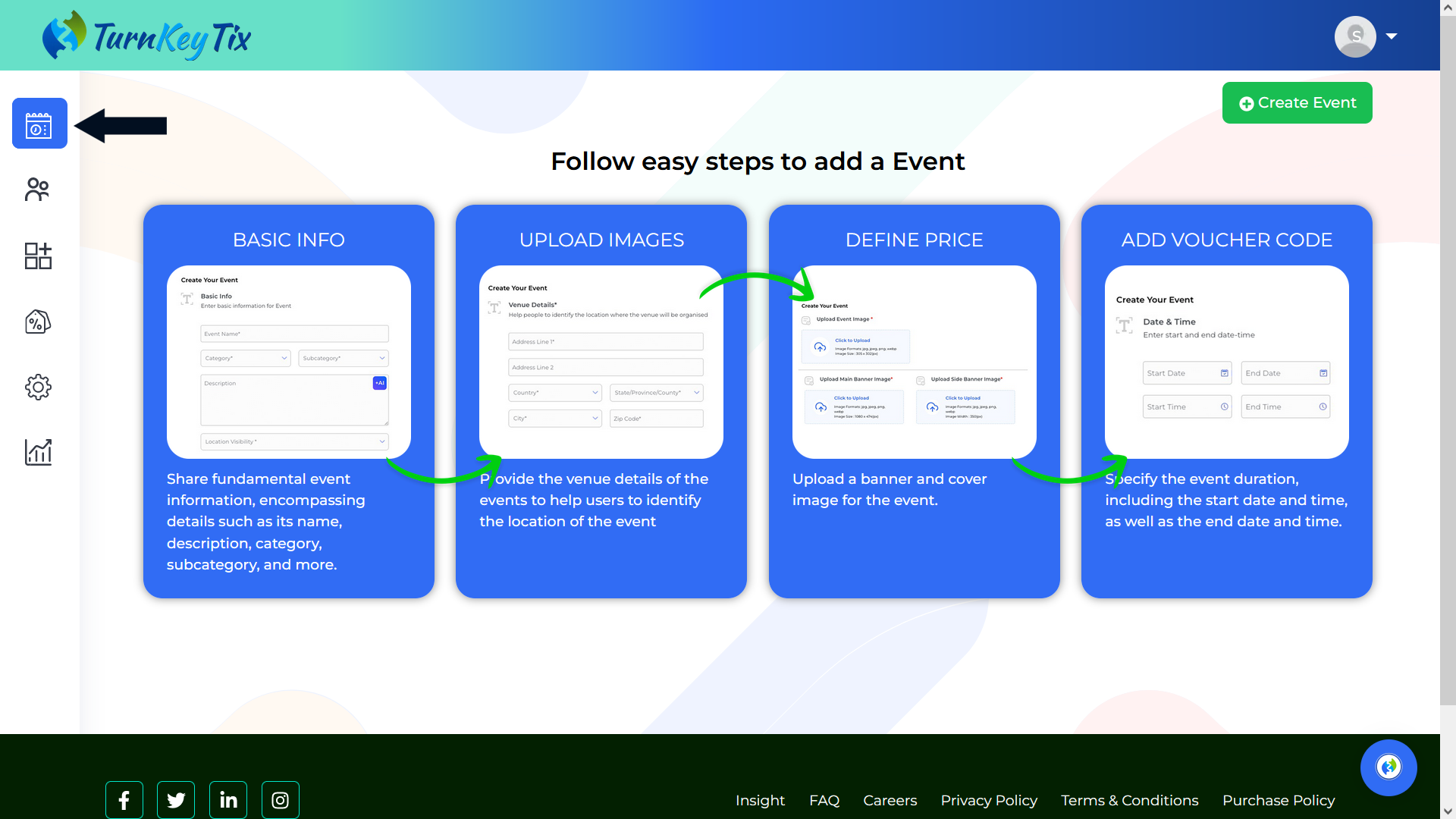
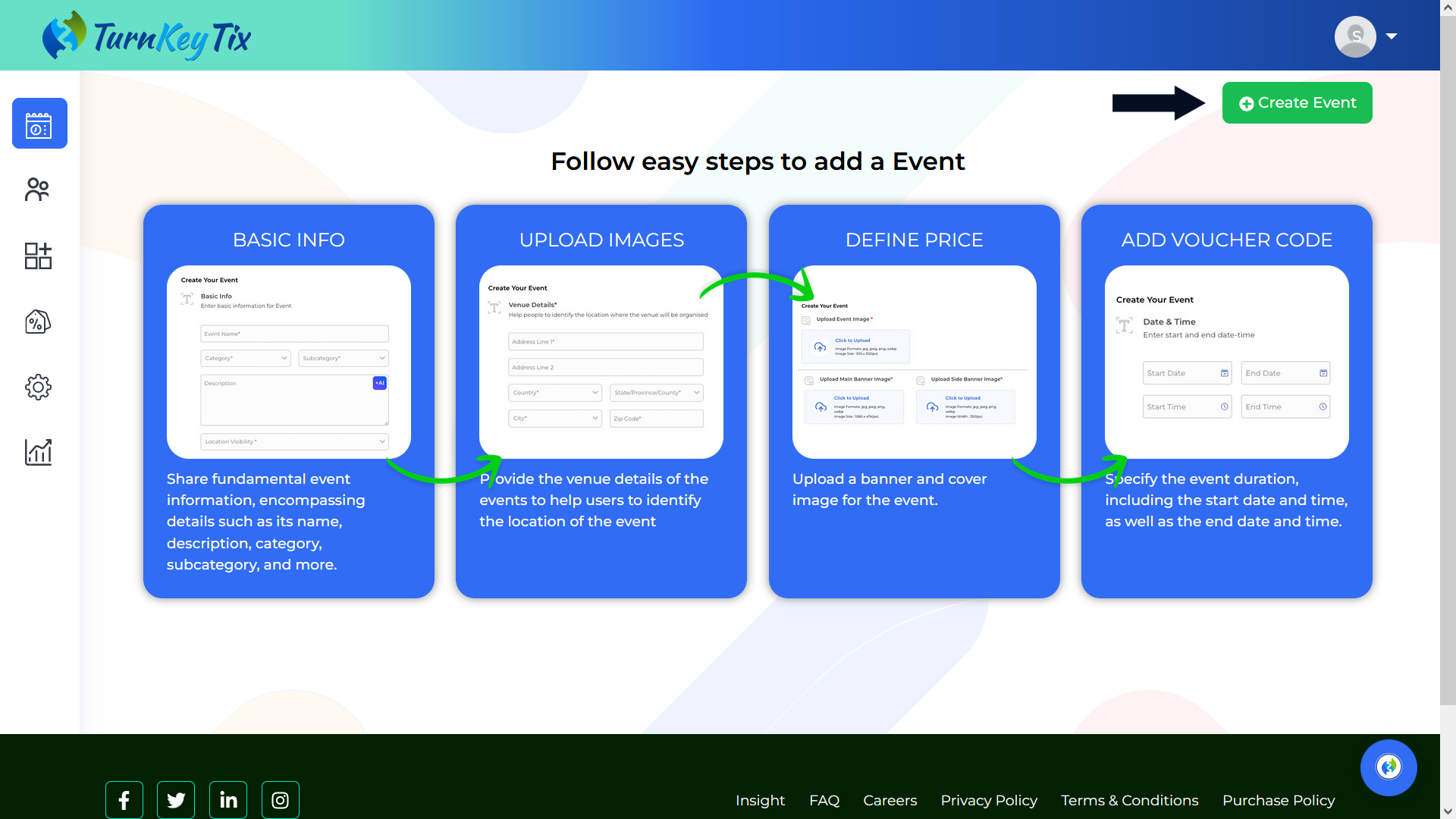
- Click on the “Create Event” Button available on the right side.
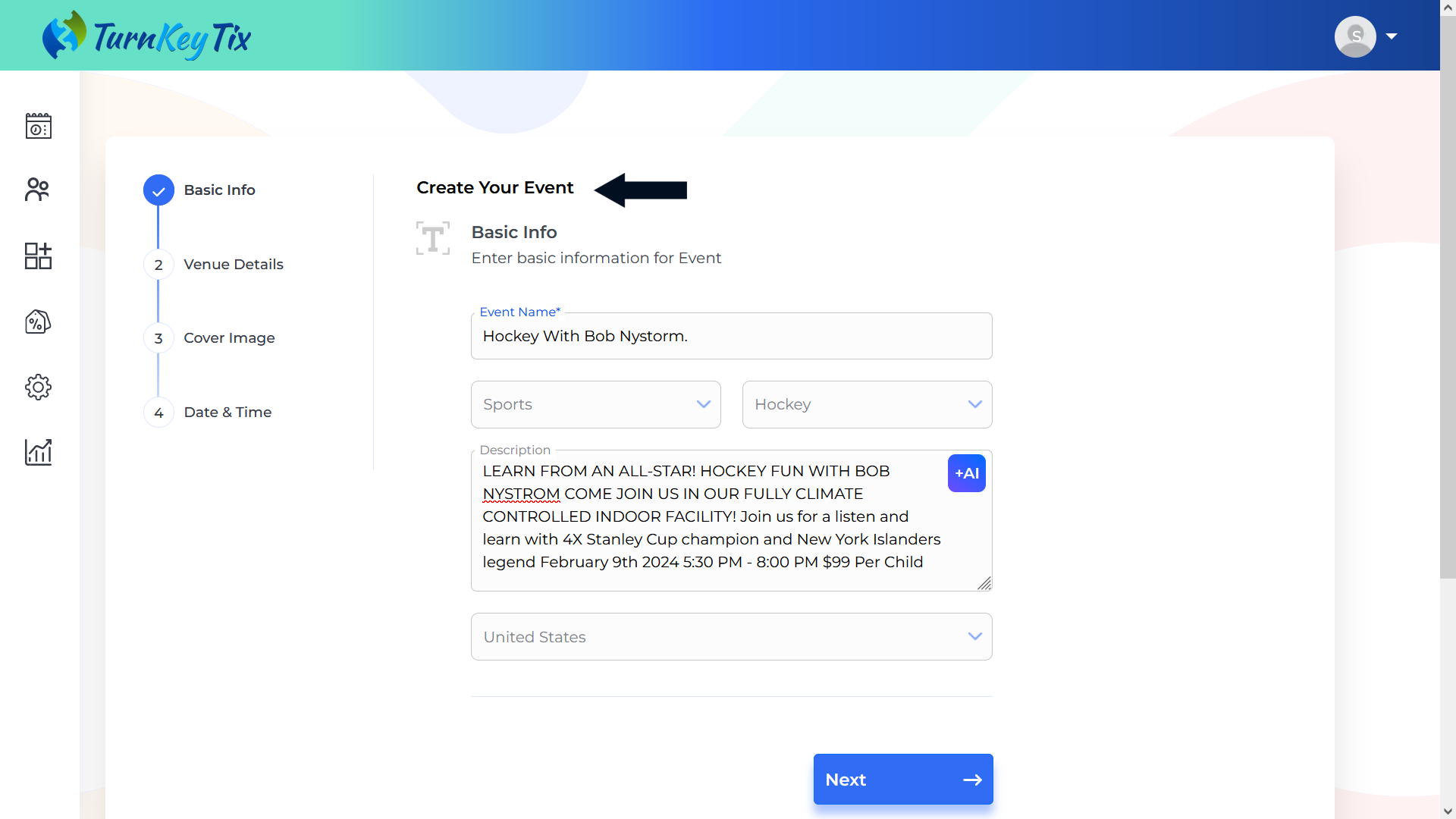
- Need to fill in the Basic Info Section.
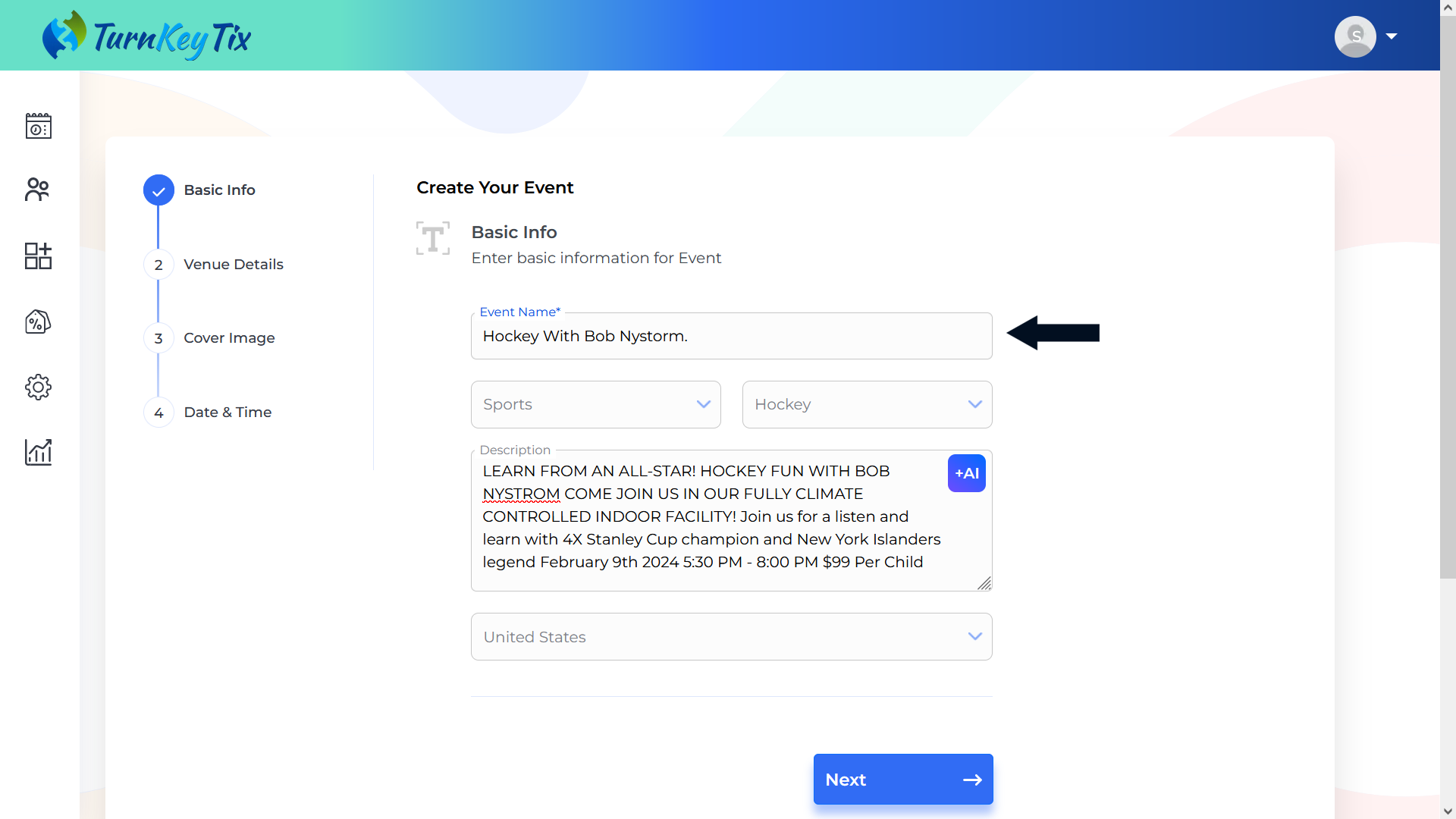
- Enter Event Title.
- Choose “Category” from the drop-down.
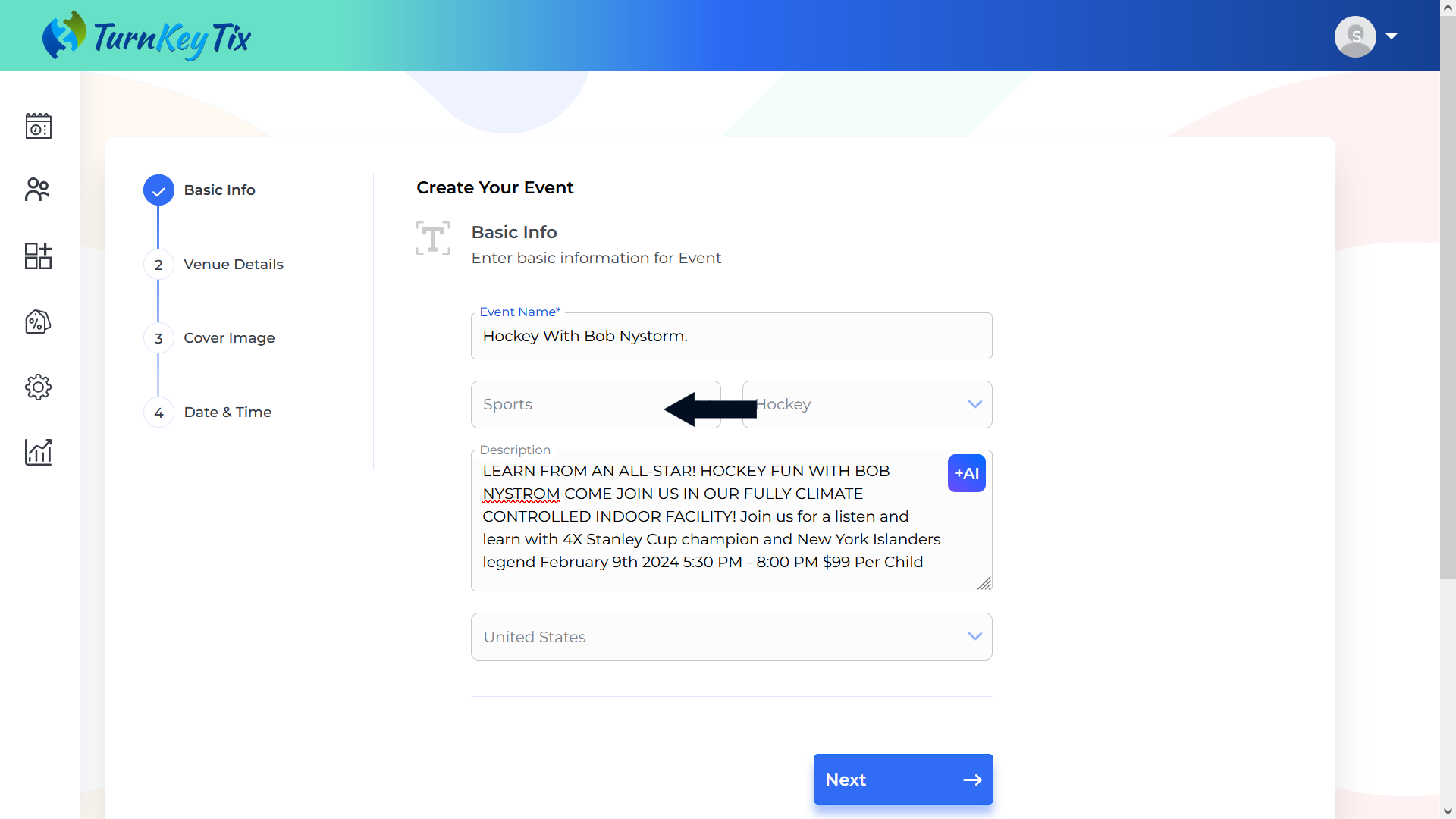
- Choose “Sub-Category” from the drop-down.
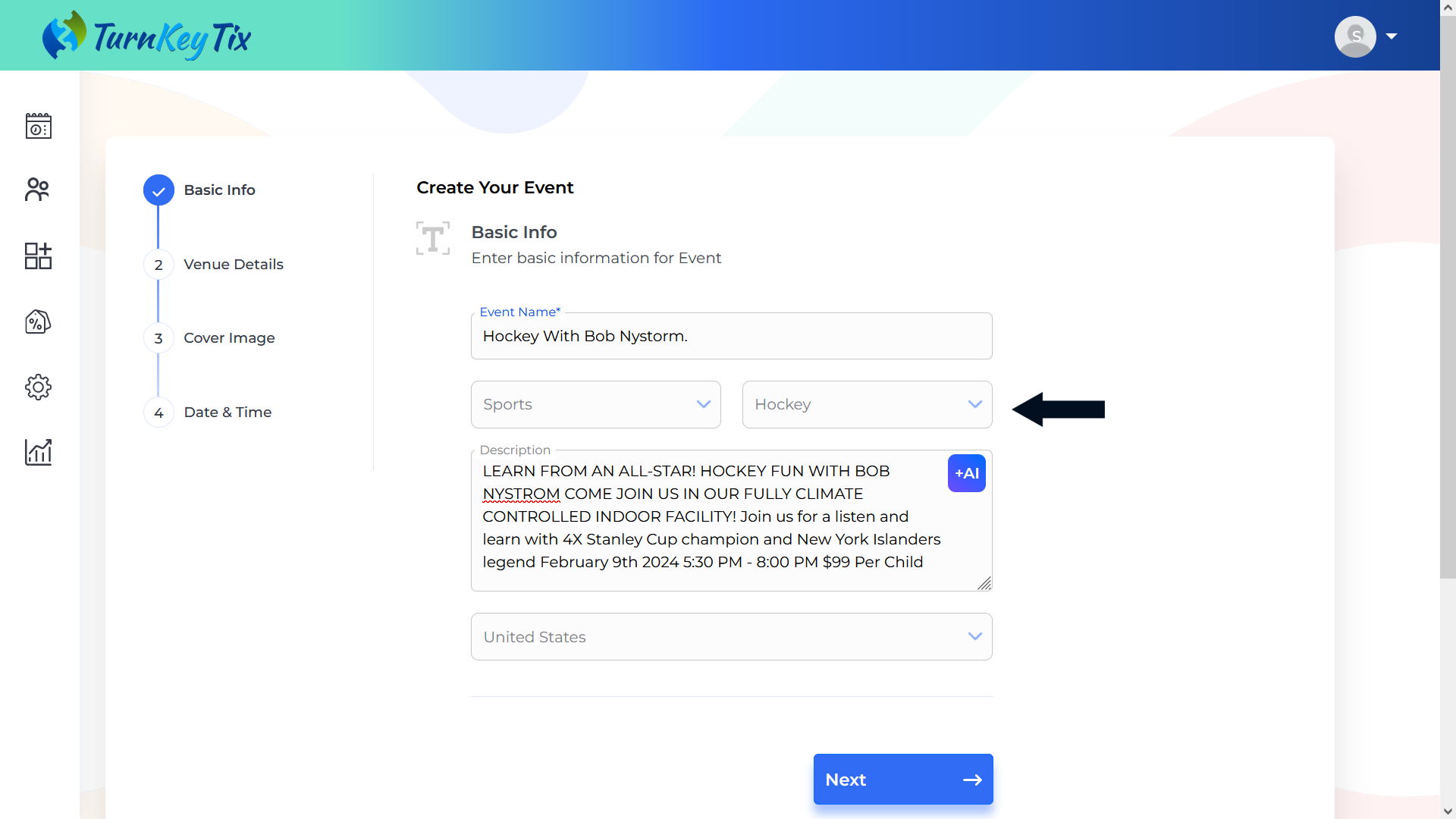
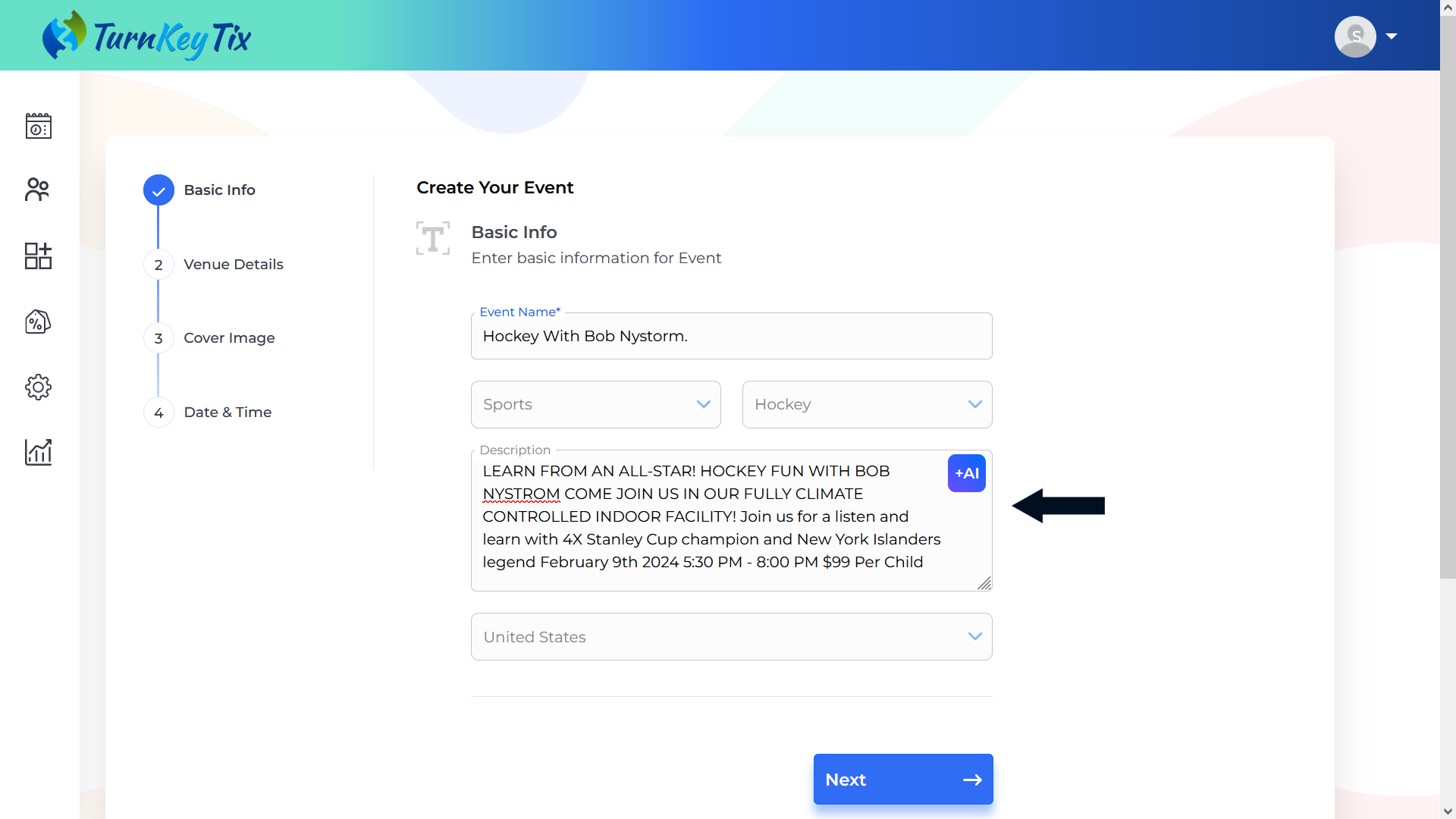
- Enter the “Event Description” manually or create the Description automatically based on the Title, Category, and Sub-Category using the “AI” button. NOTE: It is important to keep in mind that Max. 500 characters are allowed to enter the Event Description.
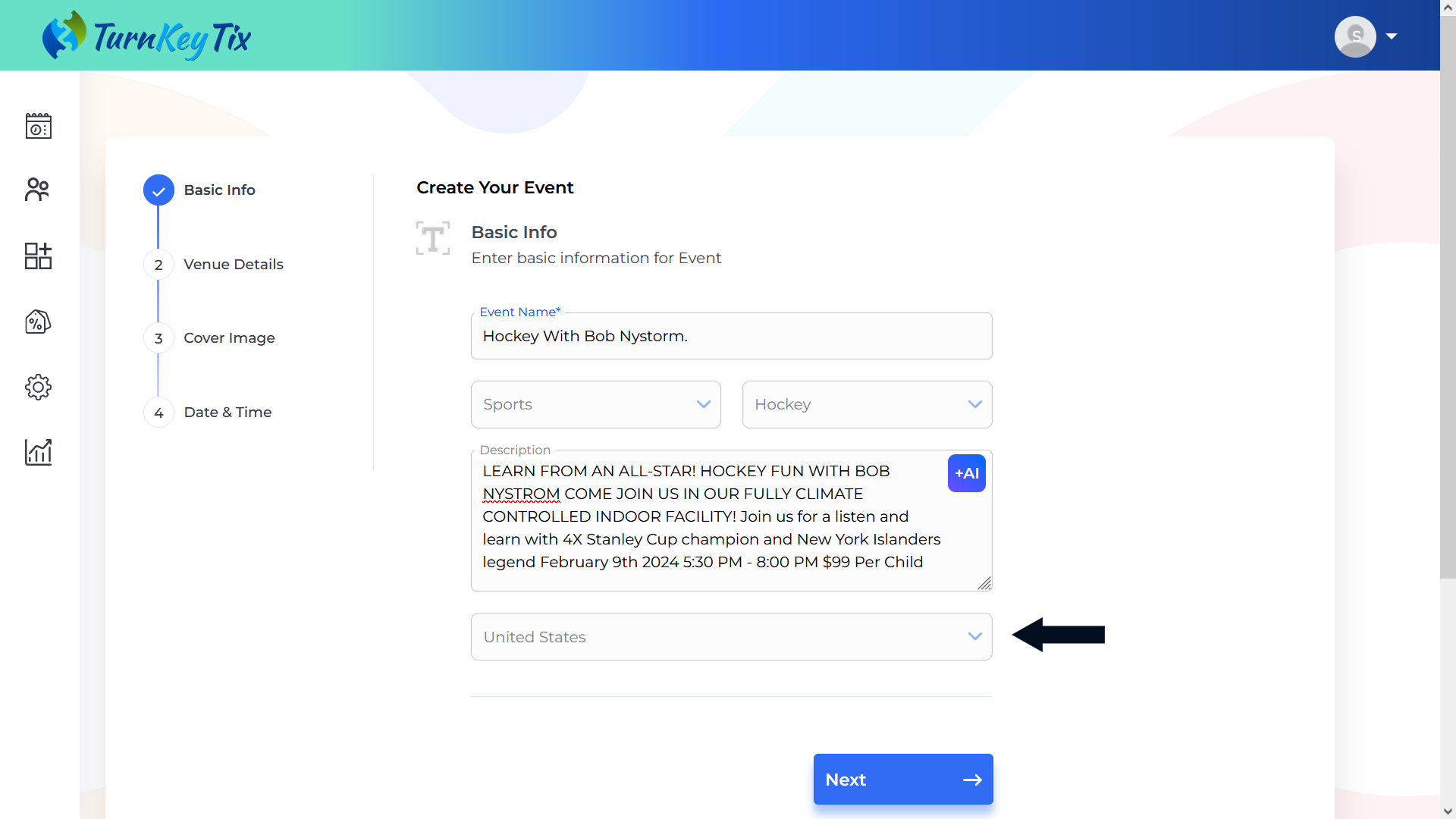
- Choose the “Location Visibility” if not automatically selected.
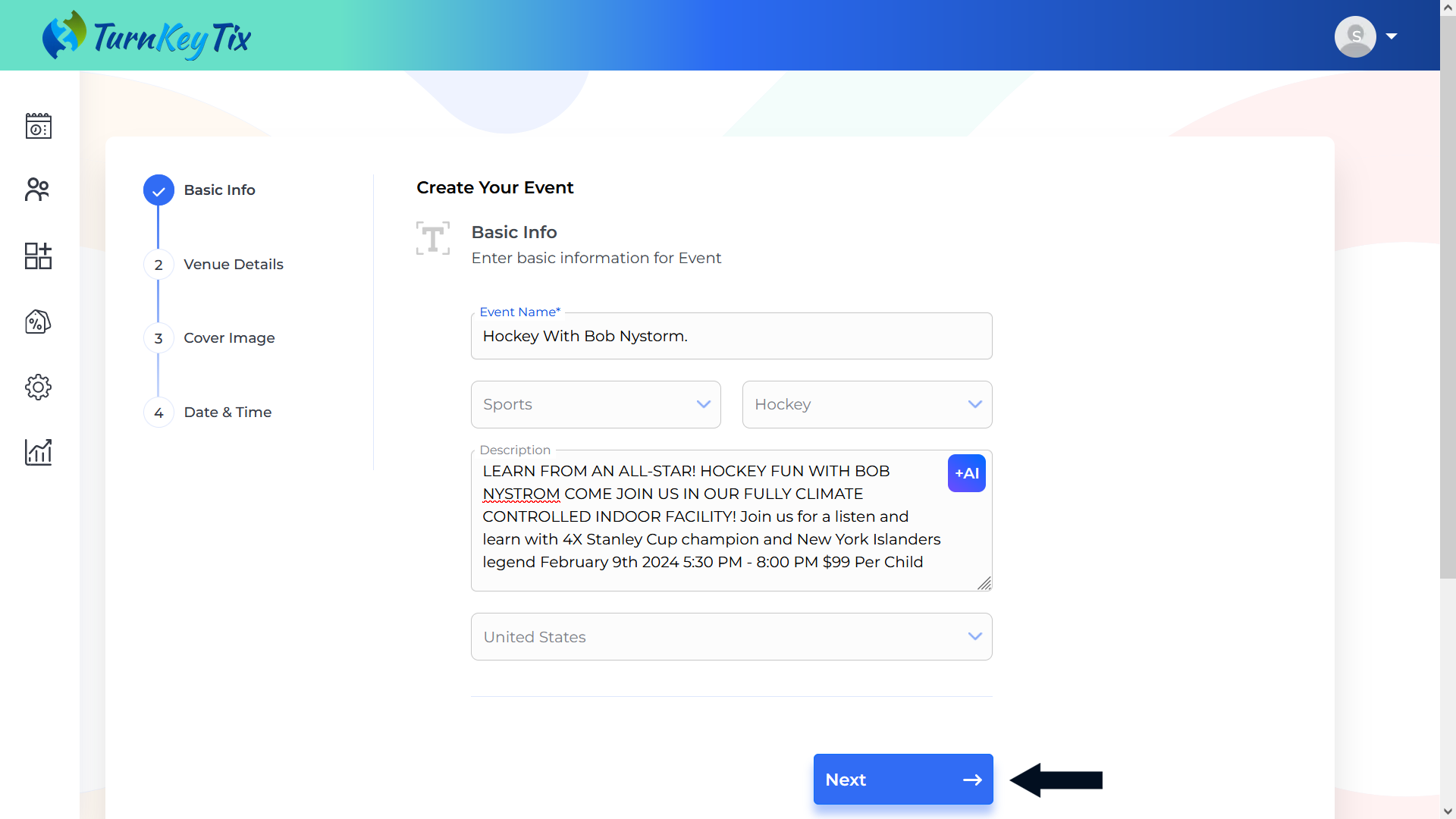
- GOTO to the next section by clicking on the “NEXT” button.
- Need to fill in the Venue Details section.
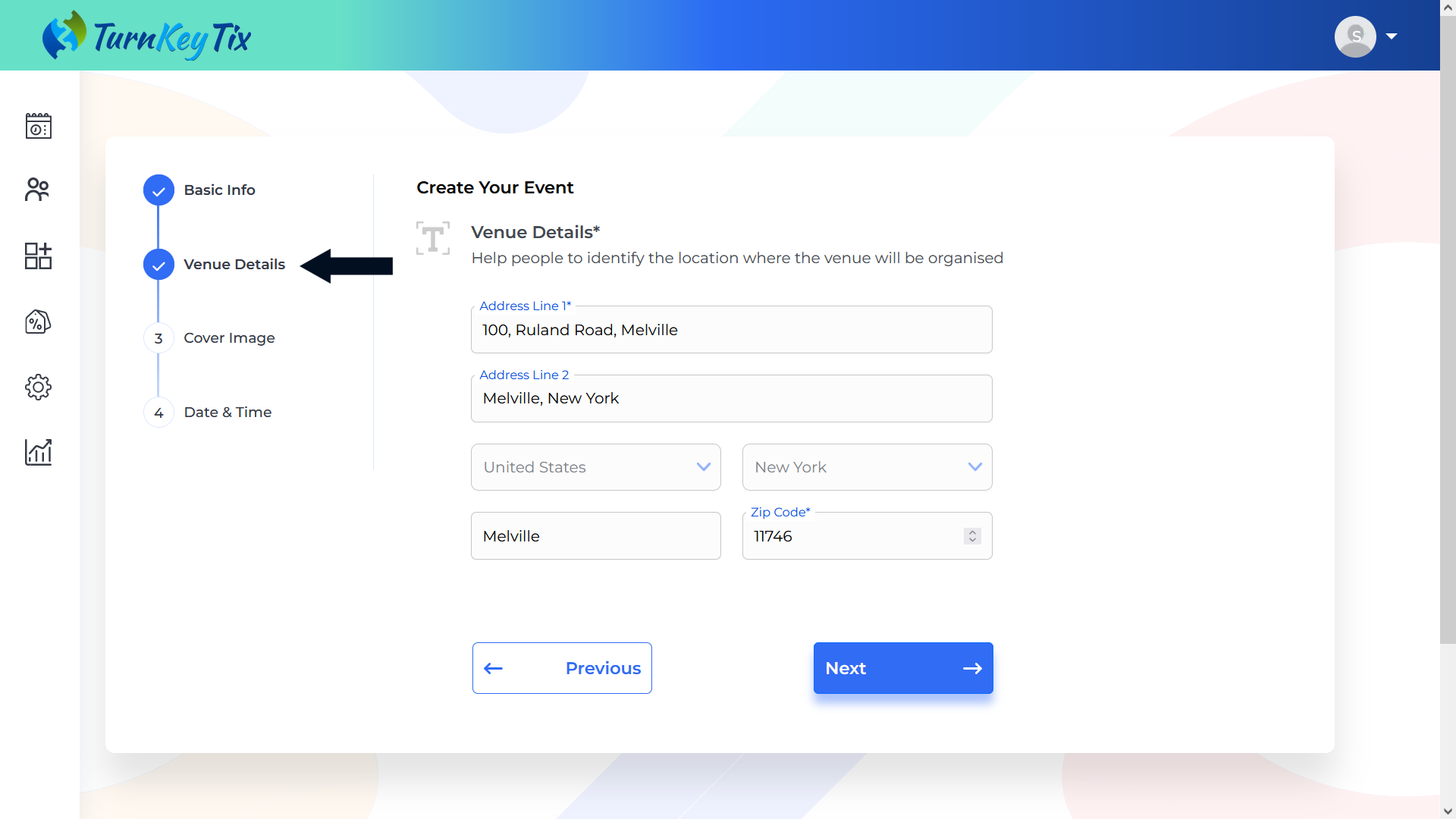
- Enter the address in Address Line 1 & Address Line 2 field. NOTE: Address field 1 is mandatory to be filled.
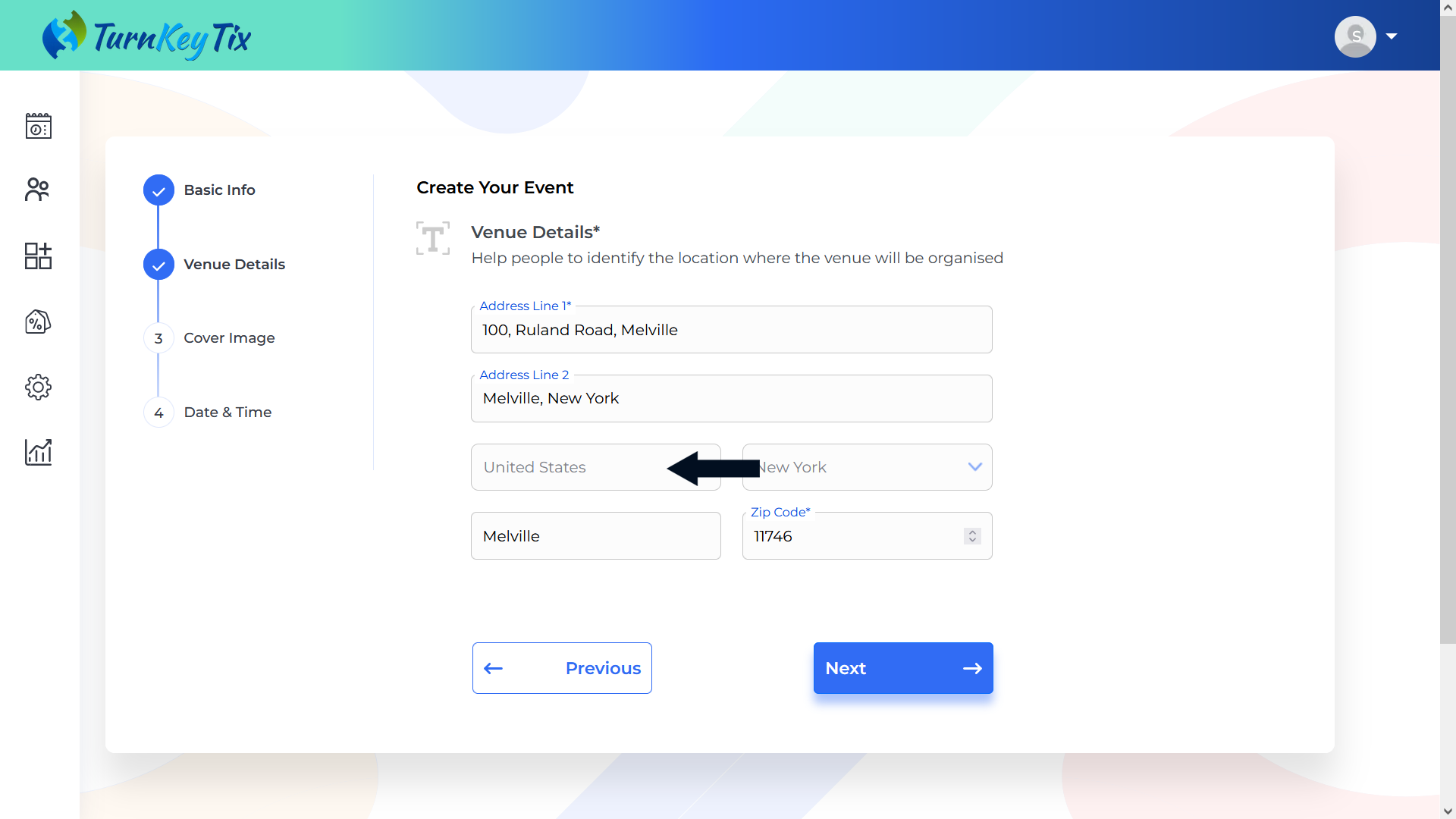
- Choose the Country from the drop-down list. NOTE: Country field 1 is mandatory to be filled.
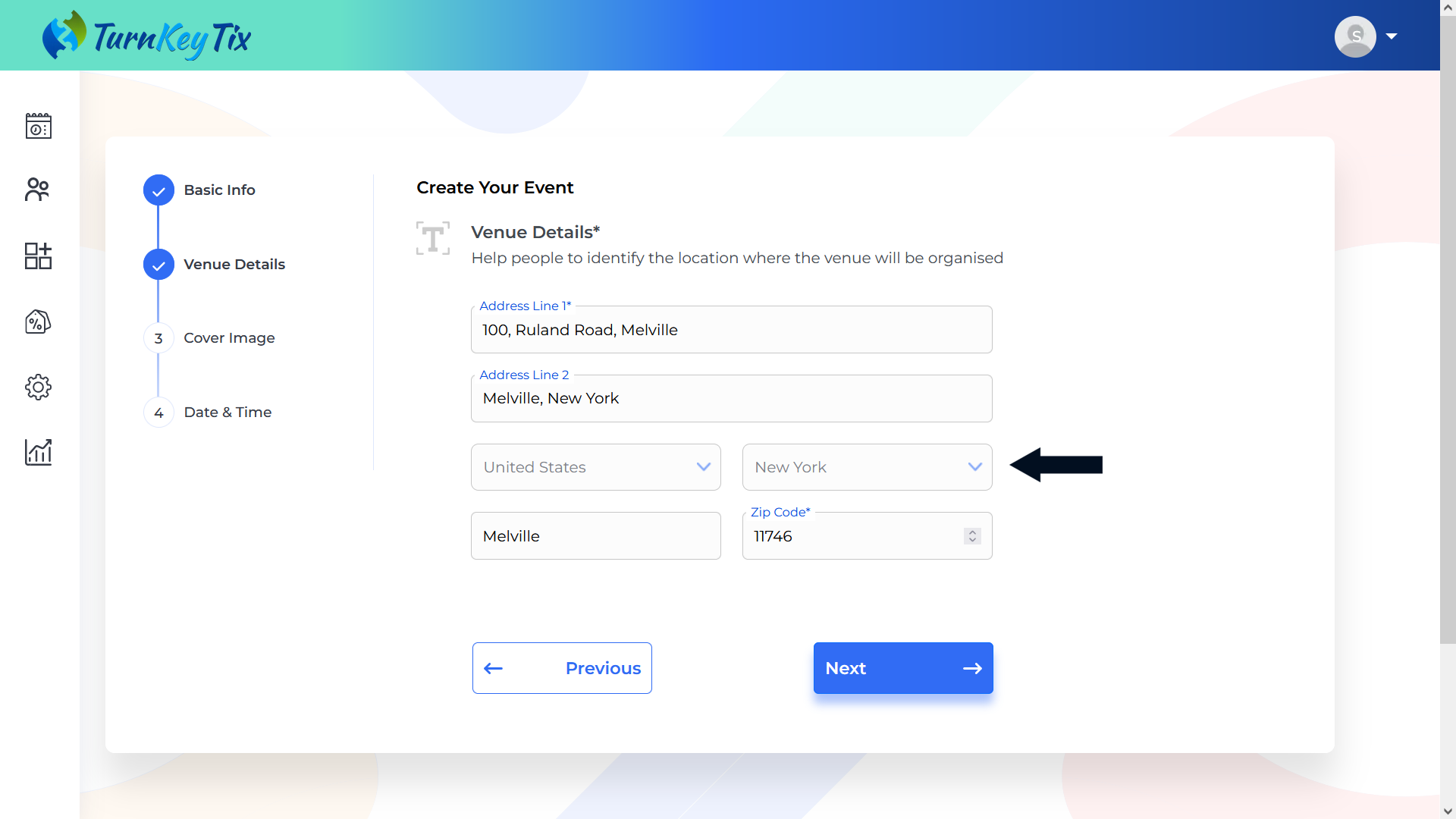
- Choose the State/Province/Country from the drop-down list. NOTE: This field is mandatory to be filled.
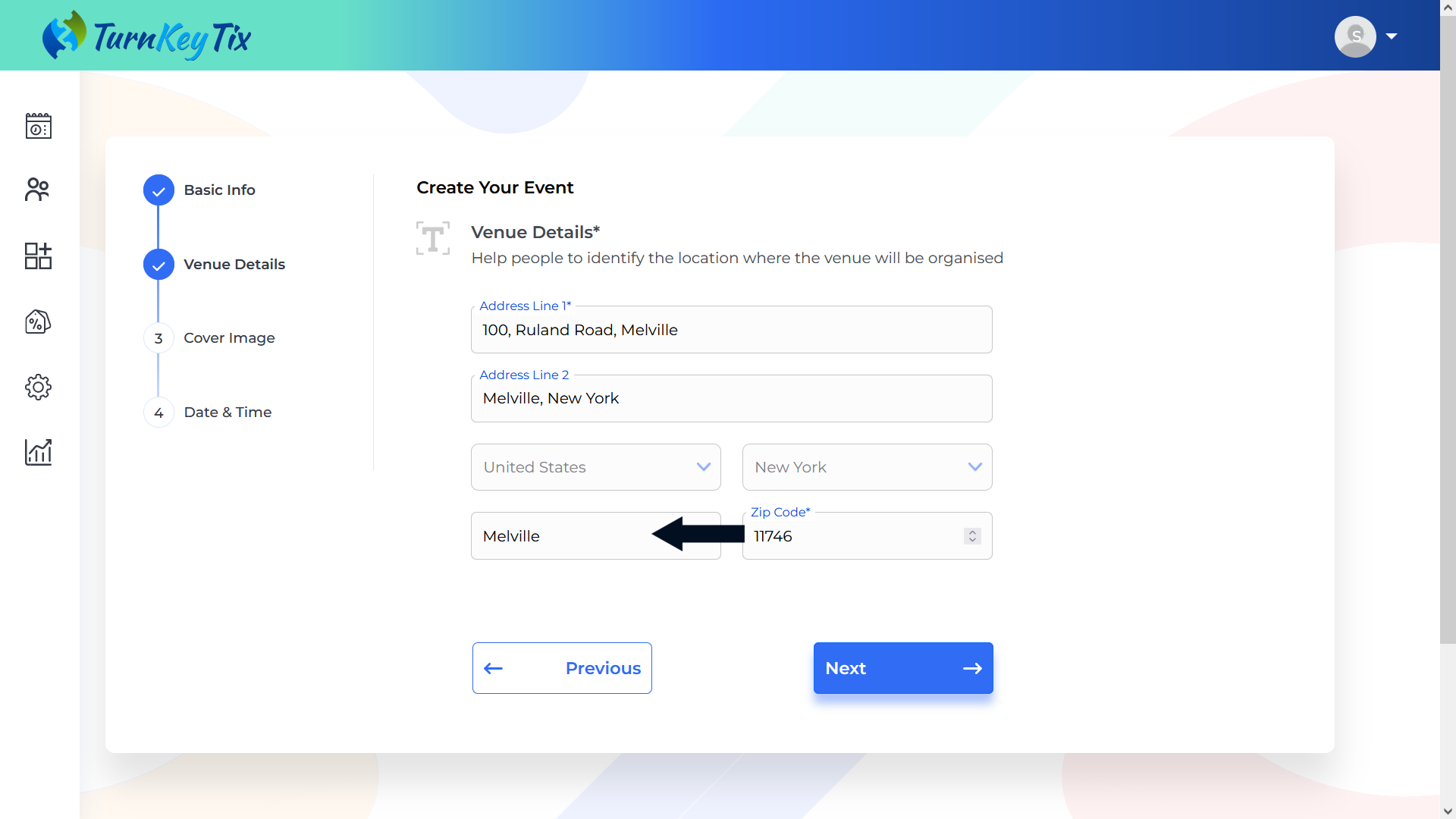
- Enter the city.
- Enter the ZIP/Pin Code. NOTE: This field is mandatory to be filled.
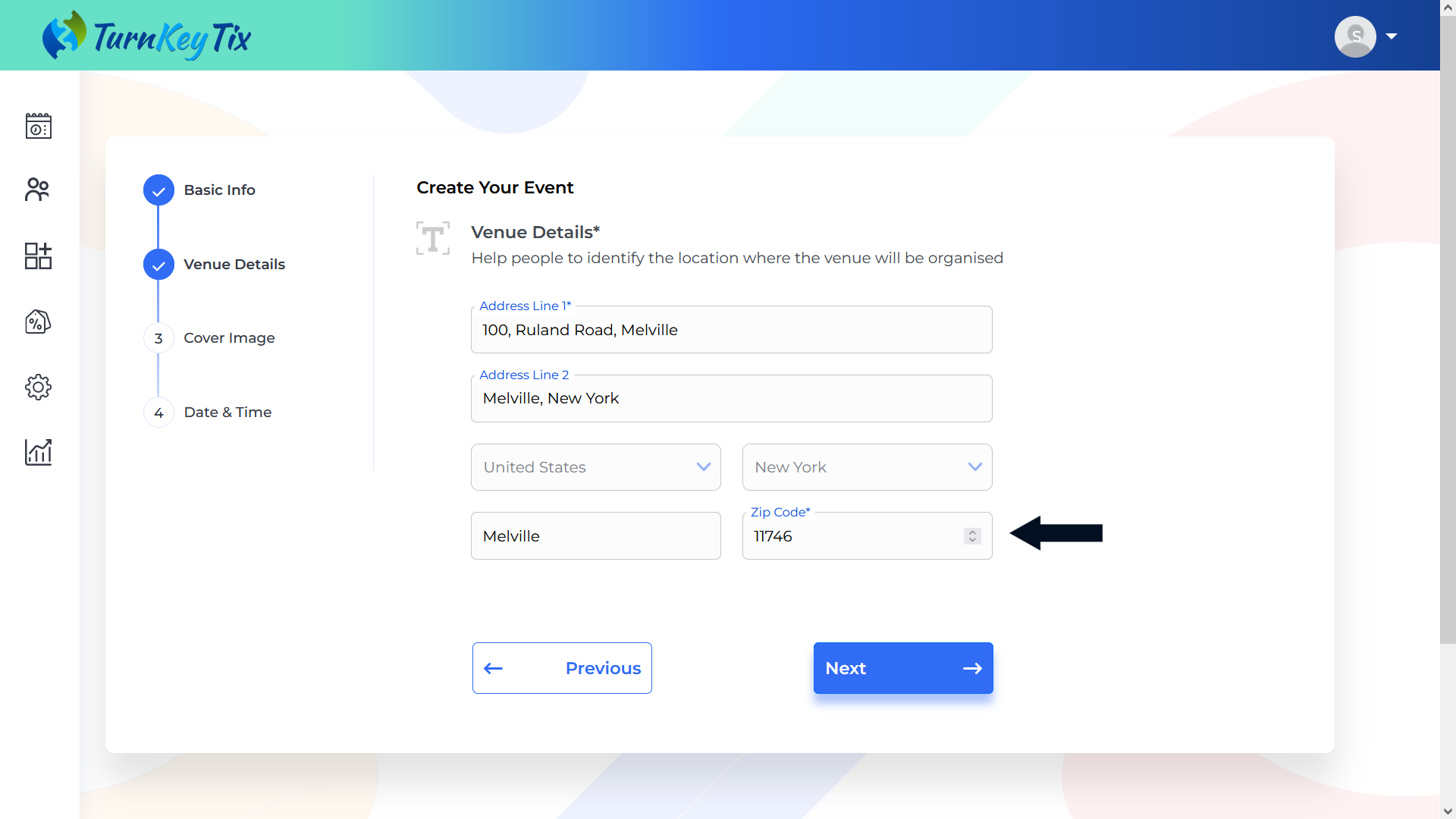
- GOTO to the next section by clicking on the “NEXT” button.
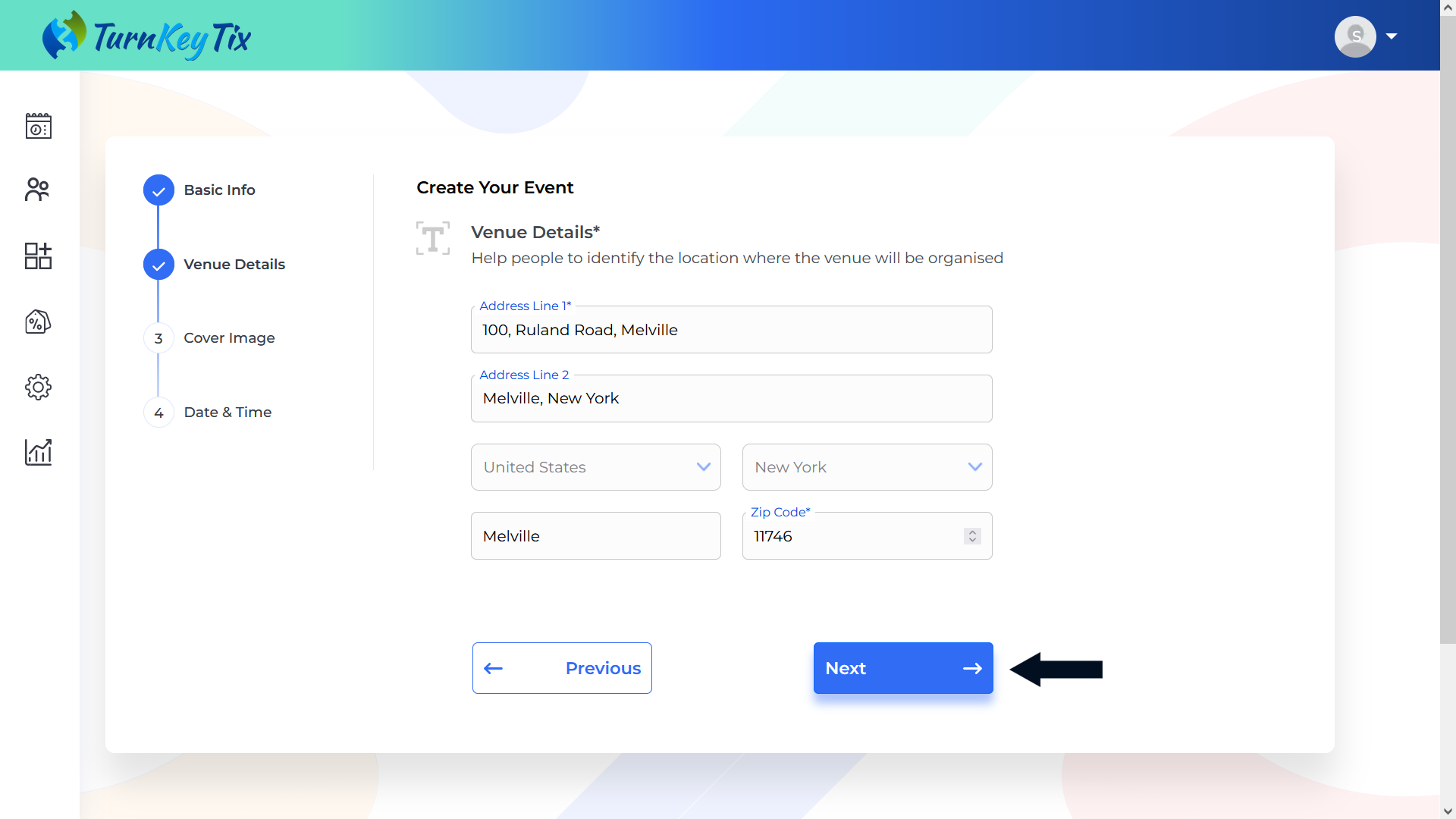
- Need to complete the “Cover Image” section. Click on the “click to upload” box to upload the event images or simply Drag and Drop the image. NOTE: It is important to keep in mind that the Max Image Height X Width should be 1000 X 600 PX with a Max Size of 20 MB (Allowed Formats are SVG, JPG, PNG, or GIF).
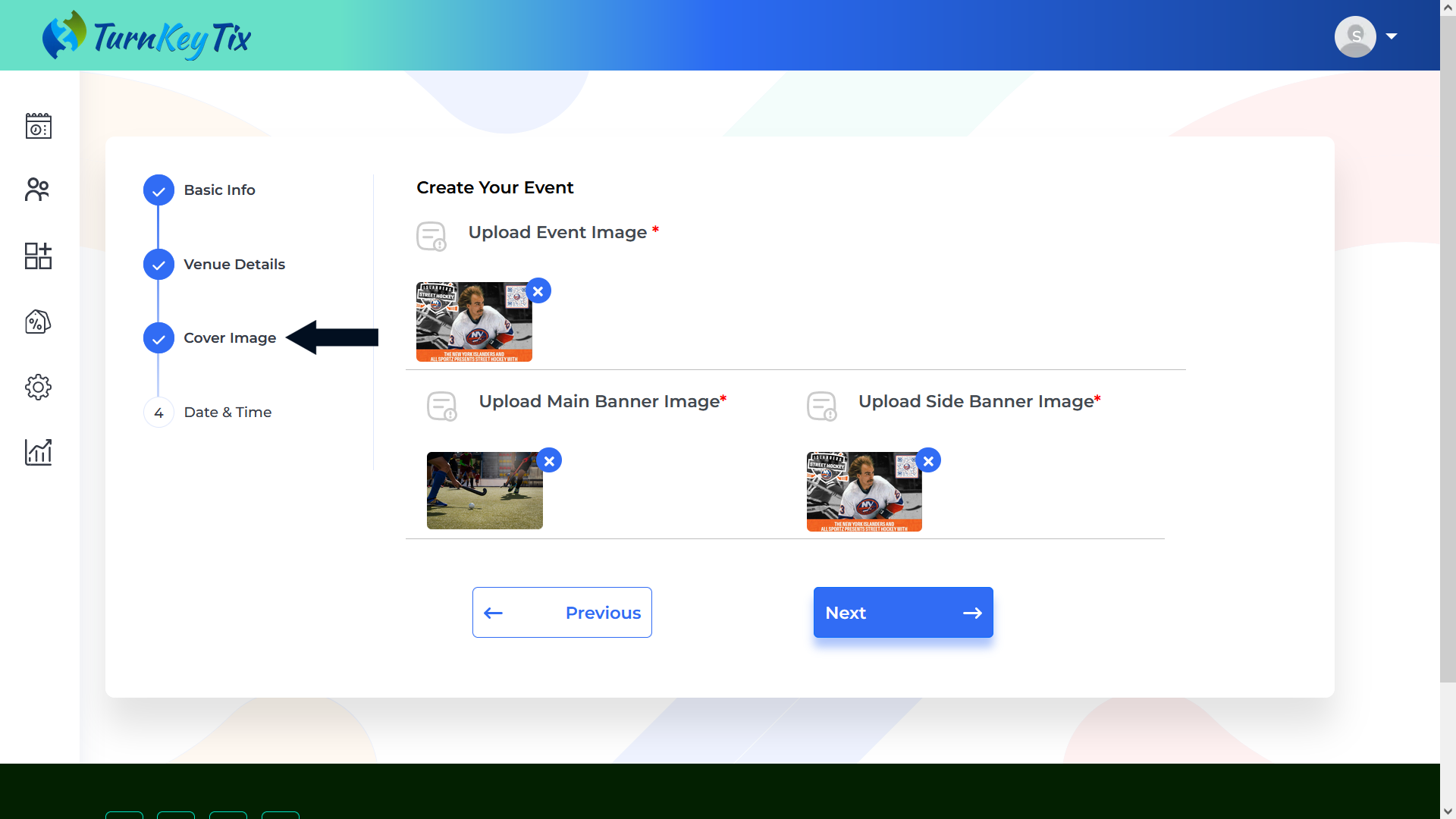
- GOTO to the next section by clicking on the “NEXT” button.
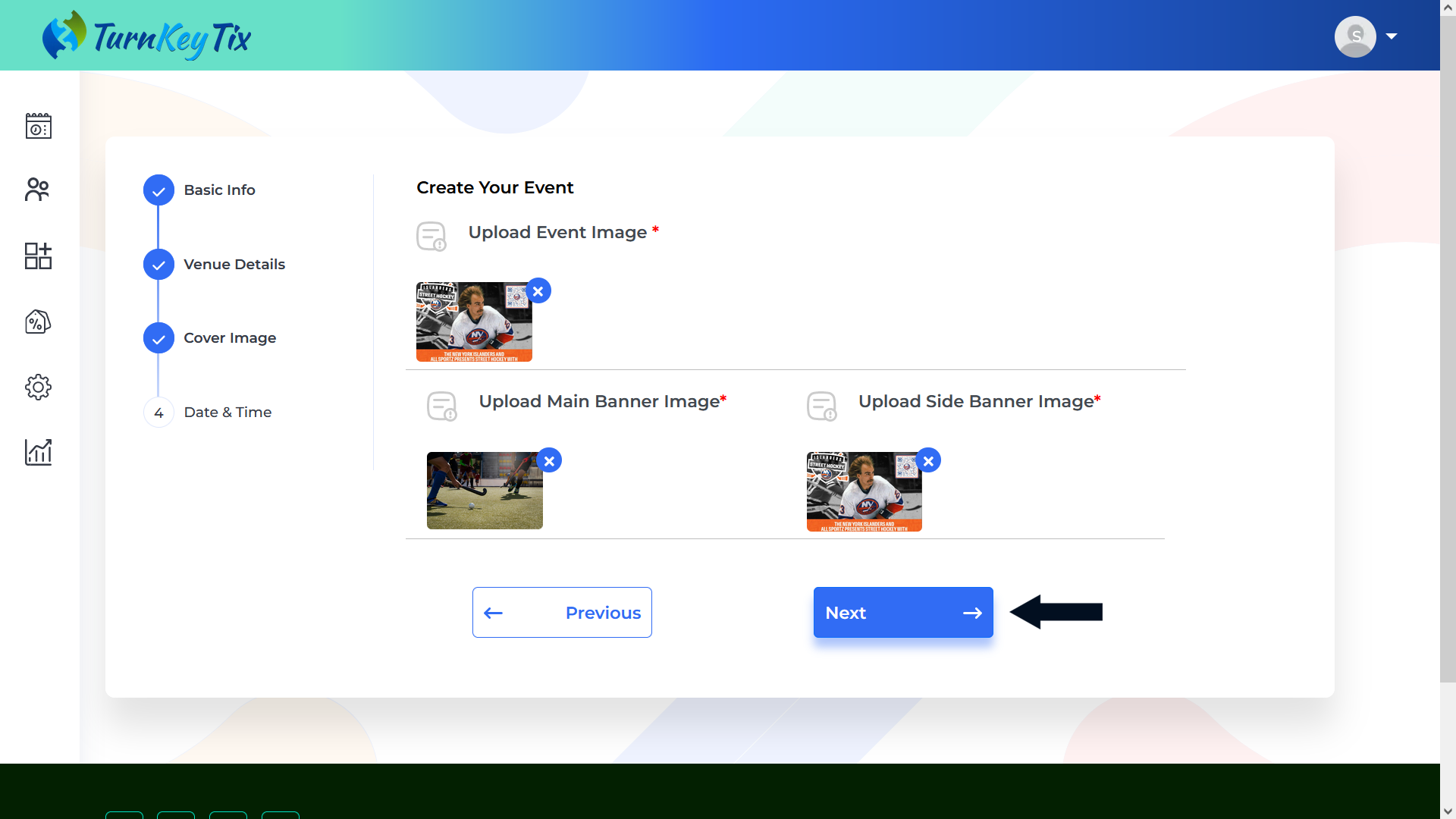
- Need to fill in the “Date & Time” section.
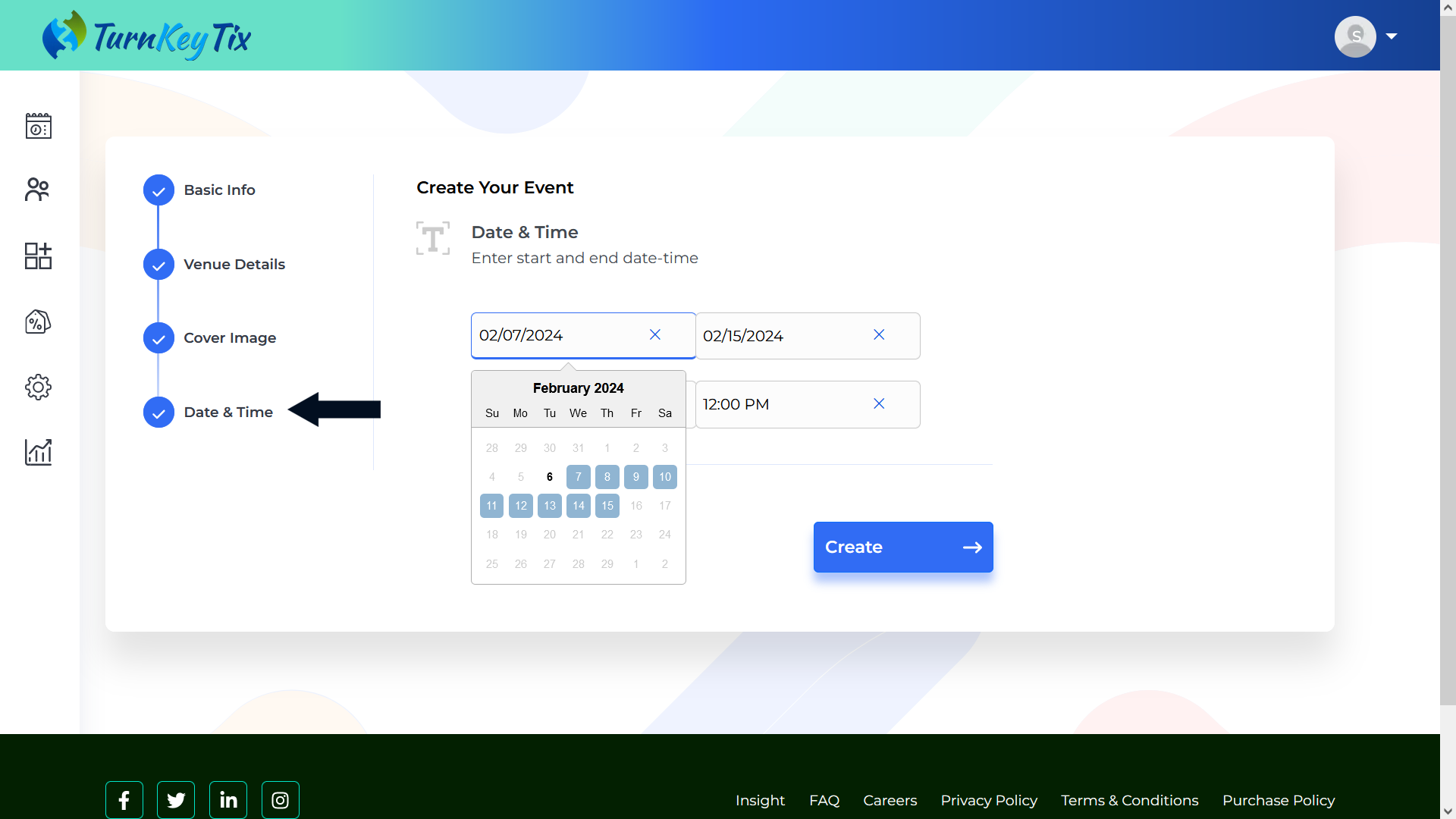
- Click in the textbox and choose the Date and Time i.e. “From and to”.
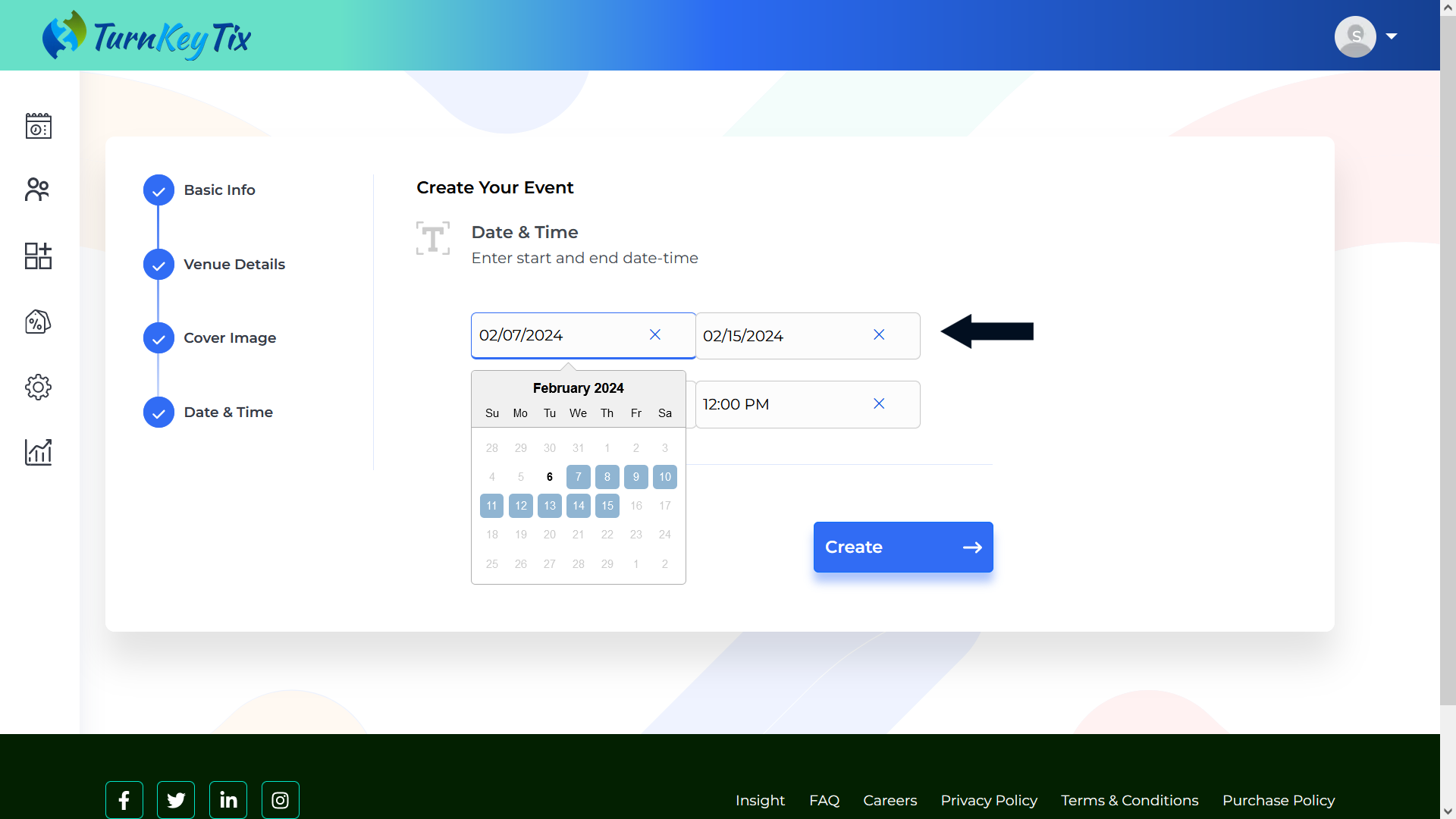
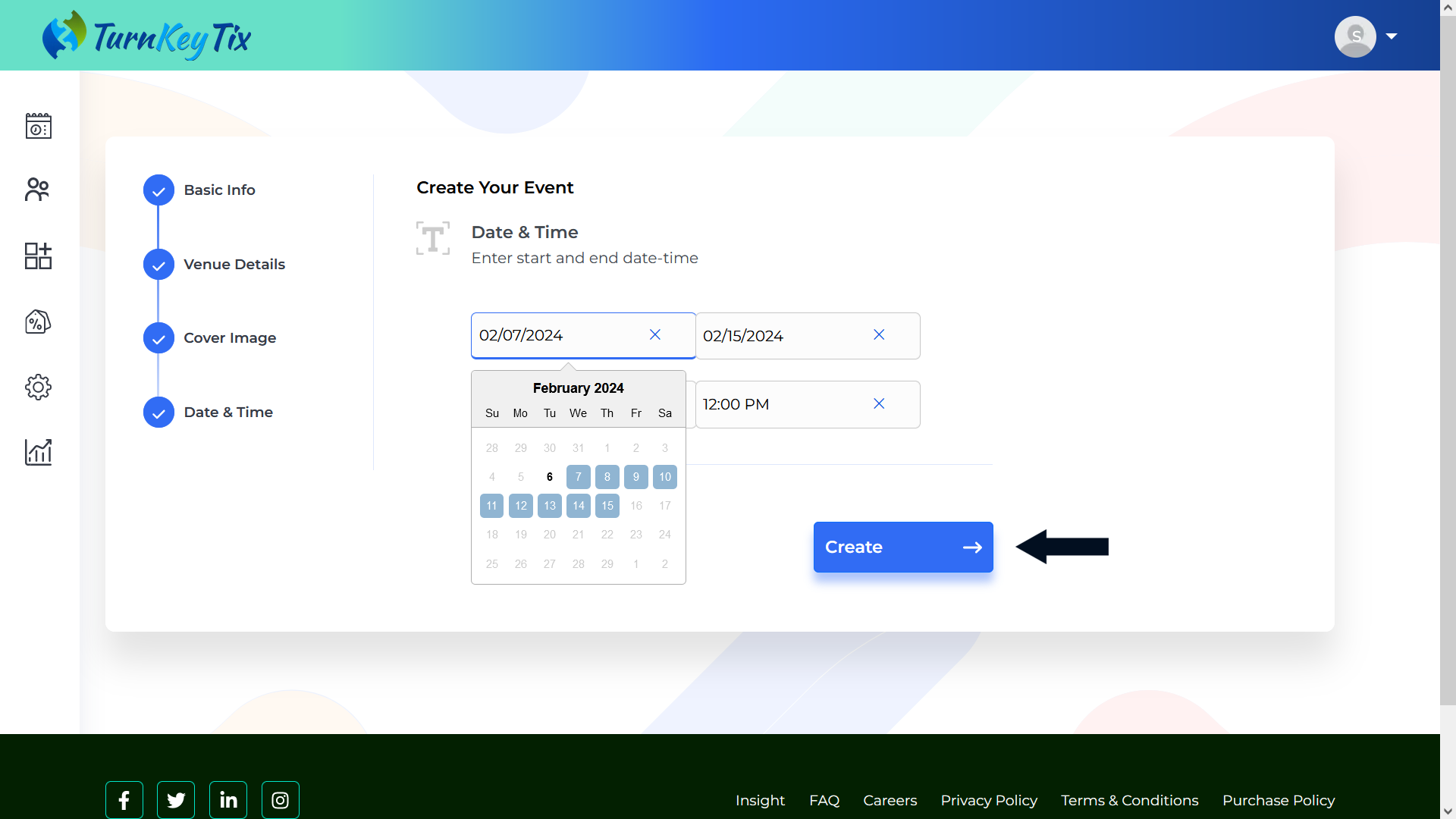
- Now, click on the “Create Event” button and your event will be created.
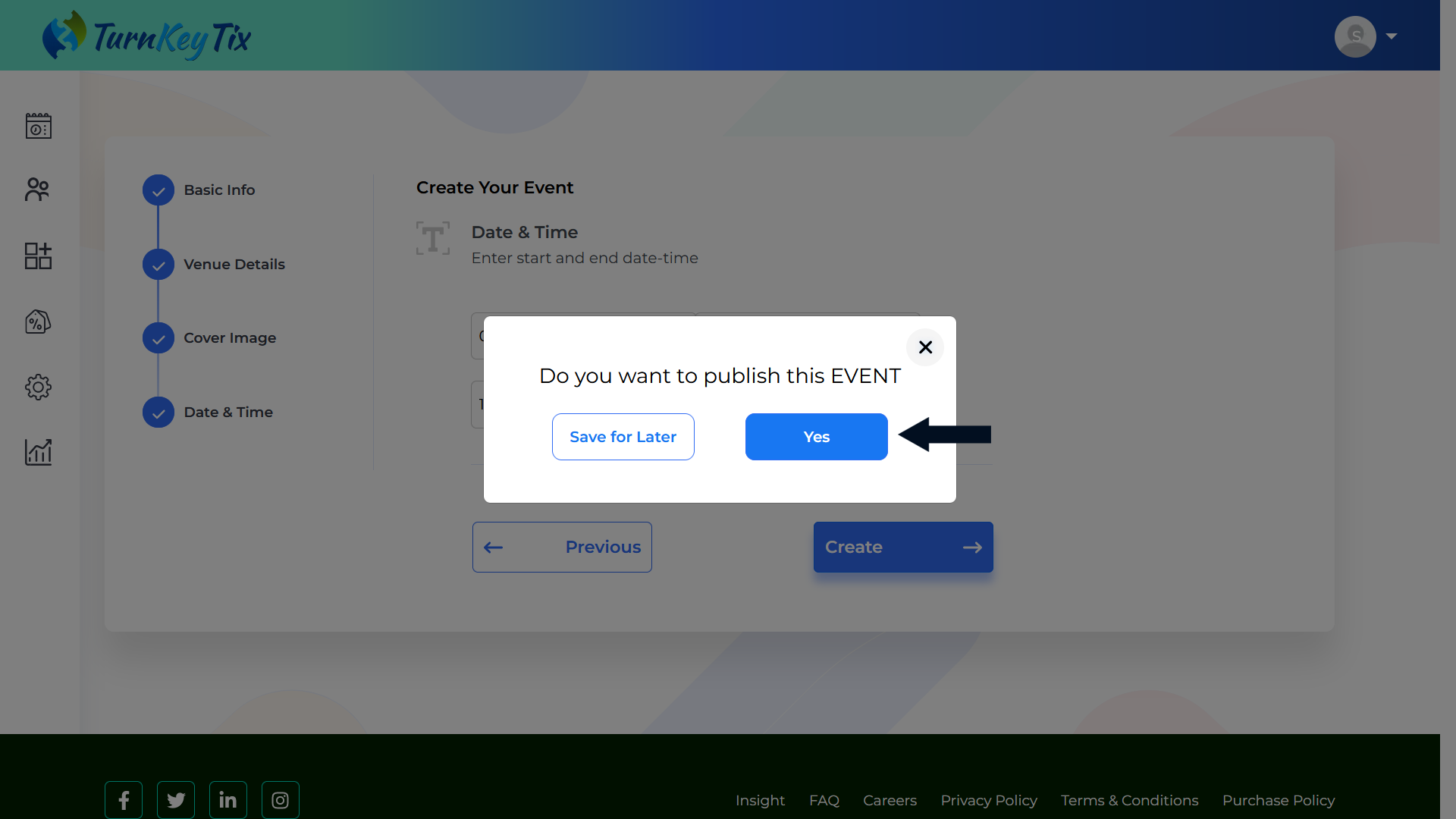
- Click on the “Yes” button and your event will be published.
- The “Created Event” will be shown on your dashboard.
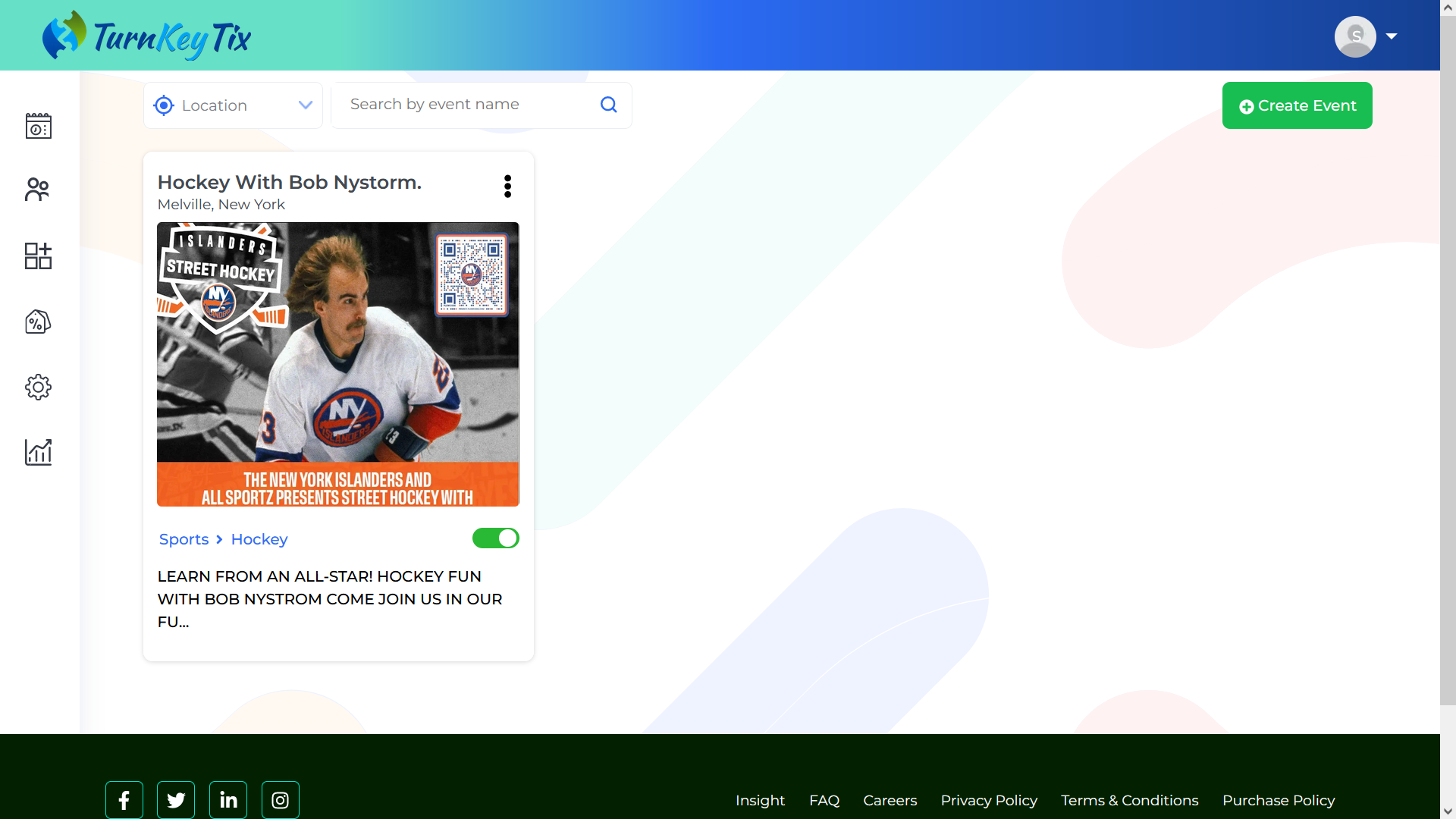
How to Add Media once Event is created
- Login into your Dashboard and Click on the 3 vertical dots of the created Event and Click on the Add Media button available on the menu of the screen.
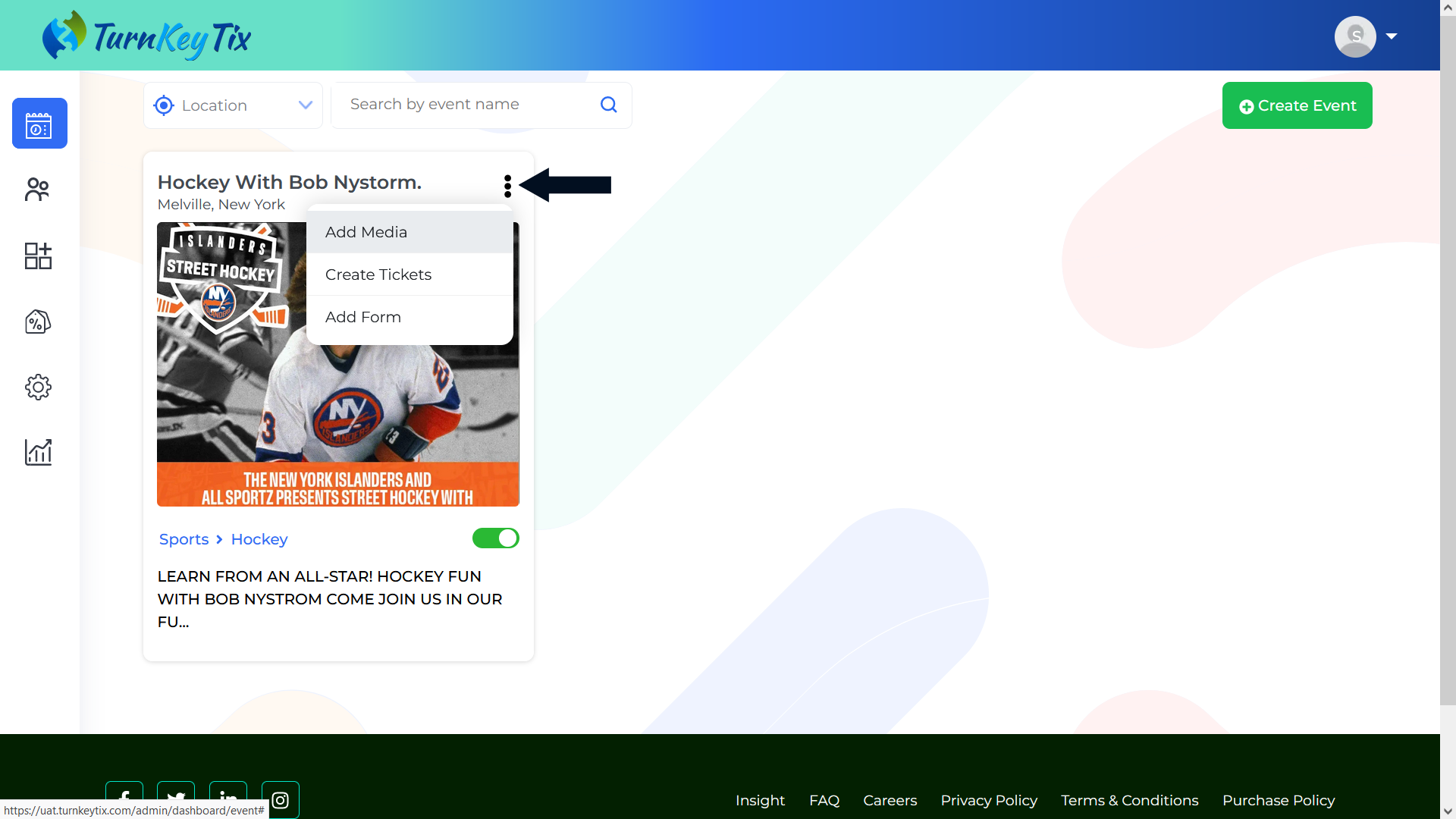 You can also click on the “Upload Media” in the right upper corner to do the same.
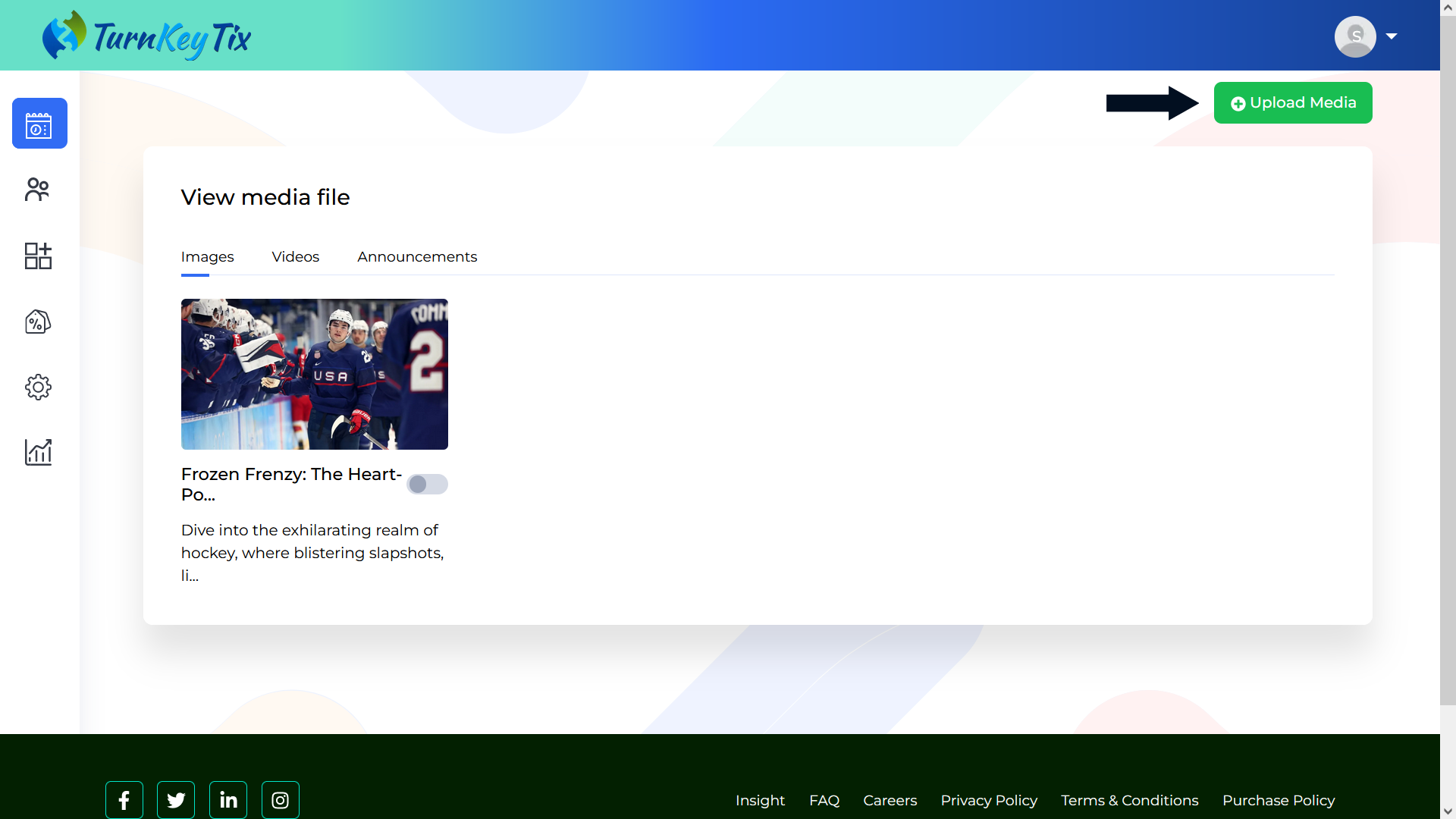
- Need to complete the Upload Media Files section.
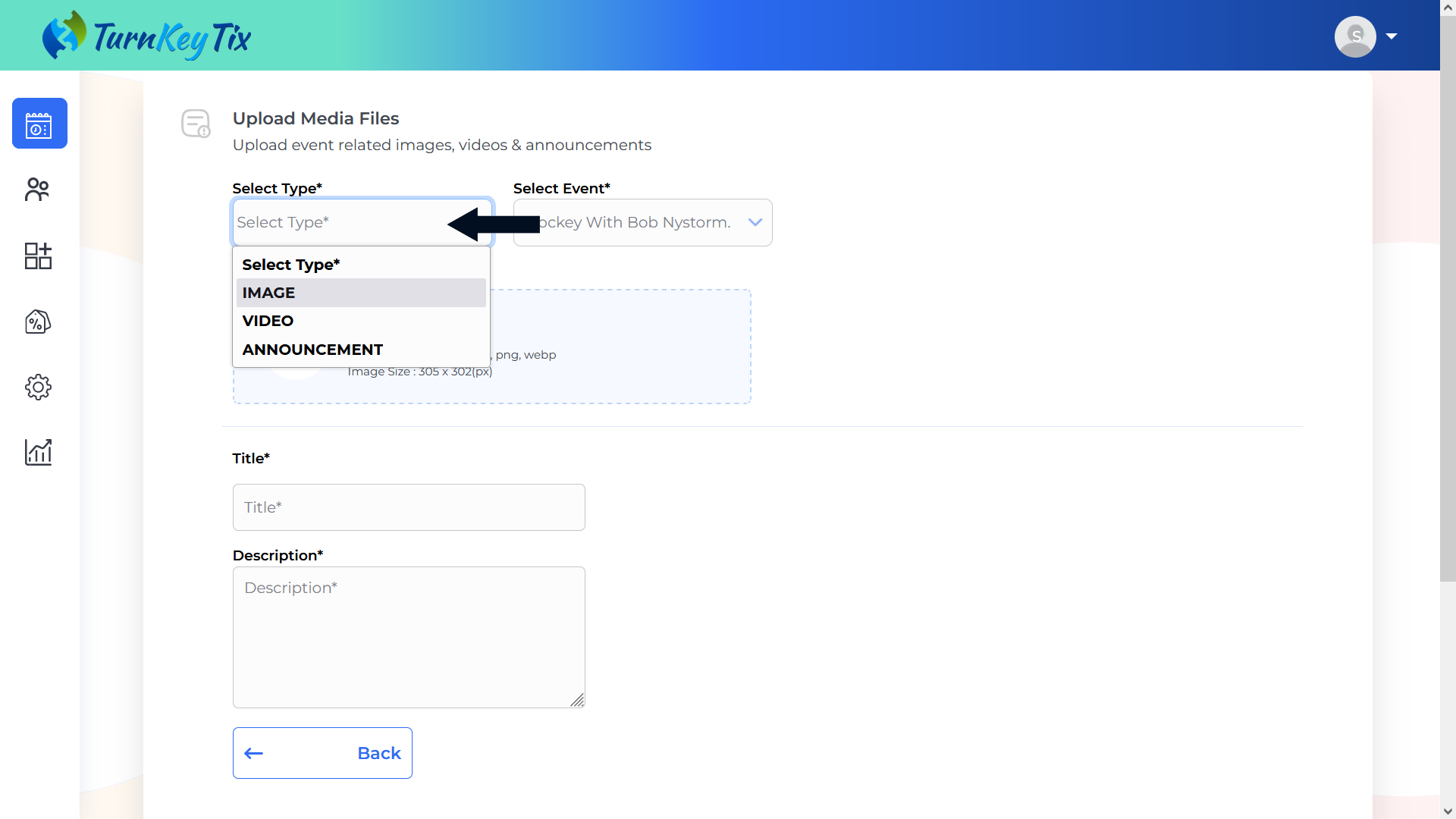
- Select the type of media: Images or Videos or Announcements.
- Click on the “click to upload” box to upload the media or simply Drag and Drop the media. NOTE: It is important to keep in mind that the Max Image Height X Width should be 1000 X 600 PX with a Max Size is 20 MB (Allowed Formats are SVG, JPG, PNG, or GIF), and the Max Size for a video is 200 MB (Allowed Formats are MP4, AVI, WebMD, MKV, WMV, or 3GPP).
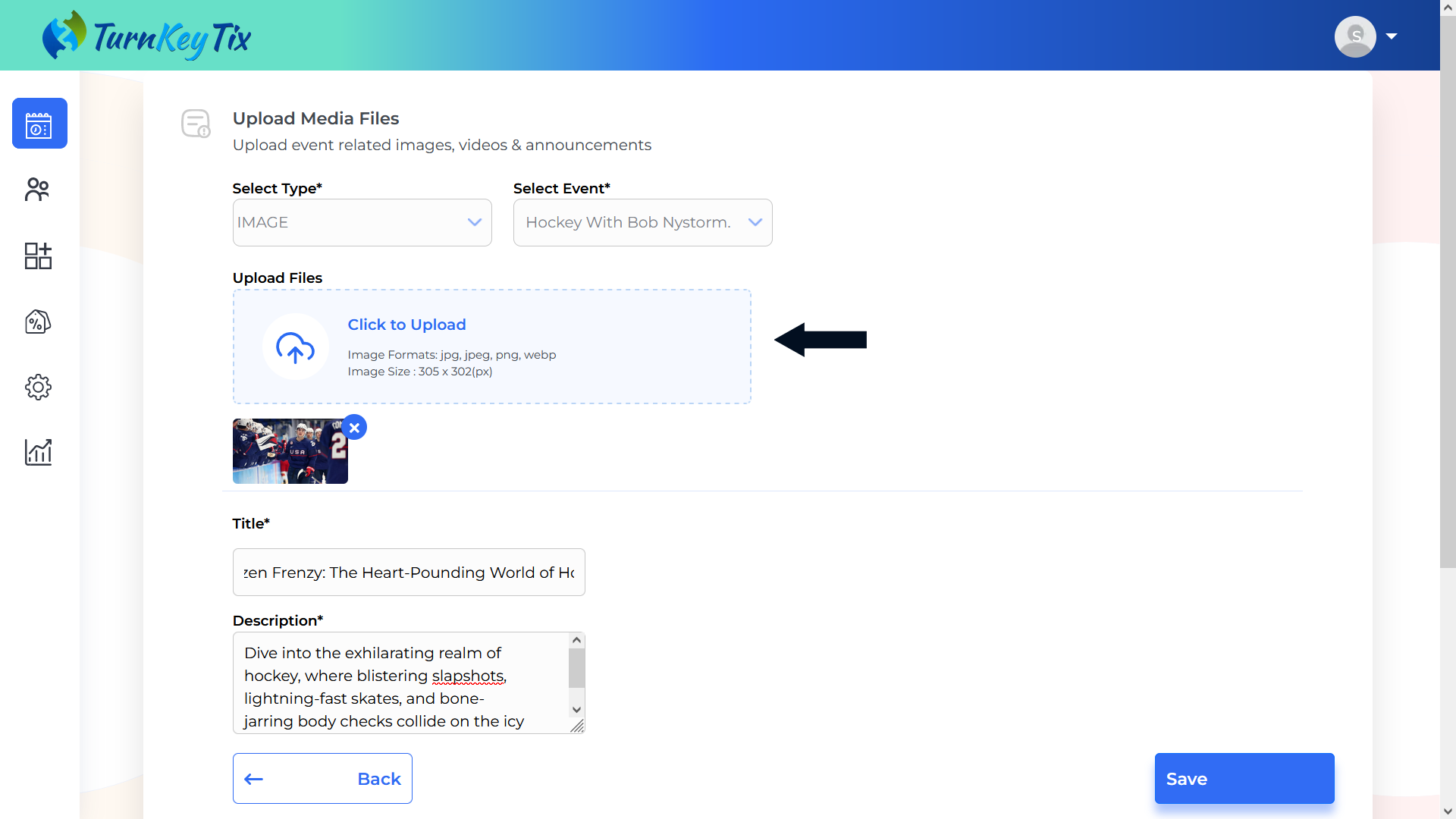
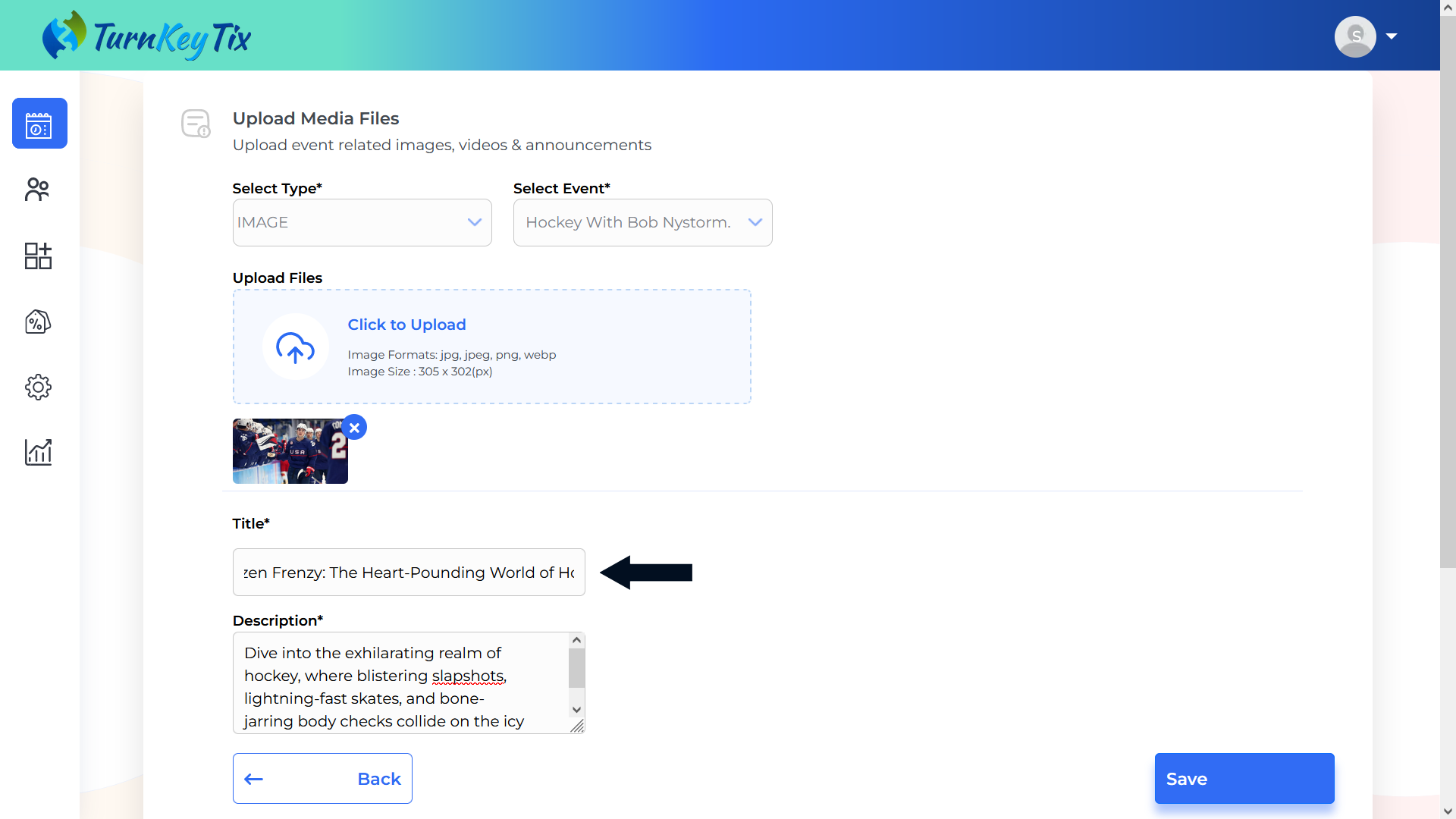
- Enter the title or name of each uploaded media in the “Title Box”.
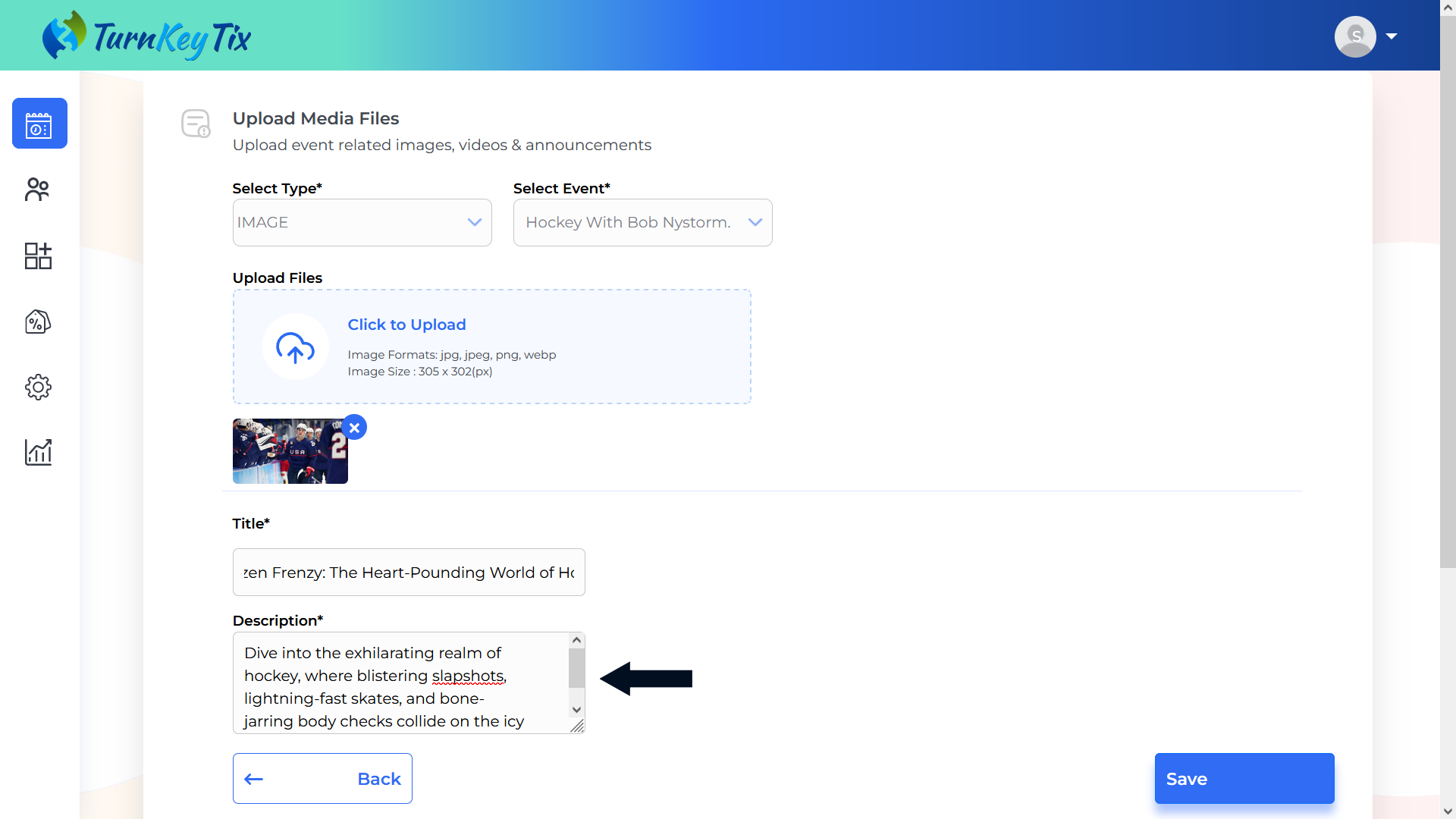
- Enter the Description of each uploaded media in the “Description Box”.
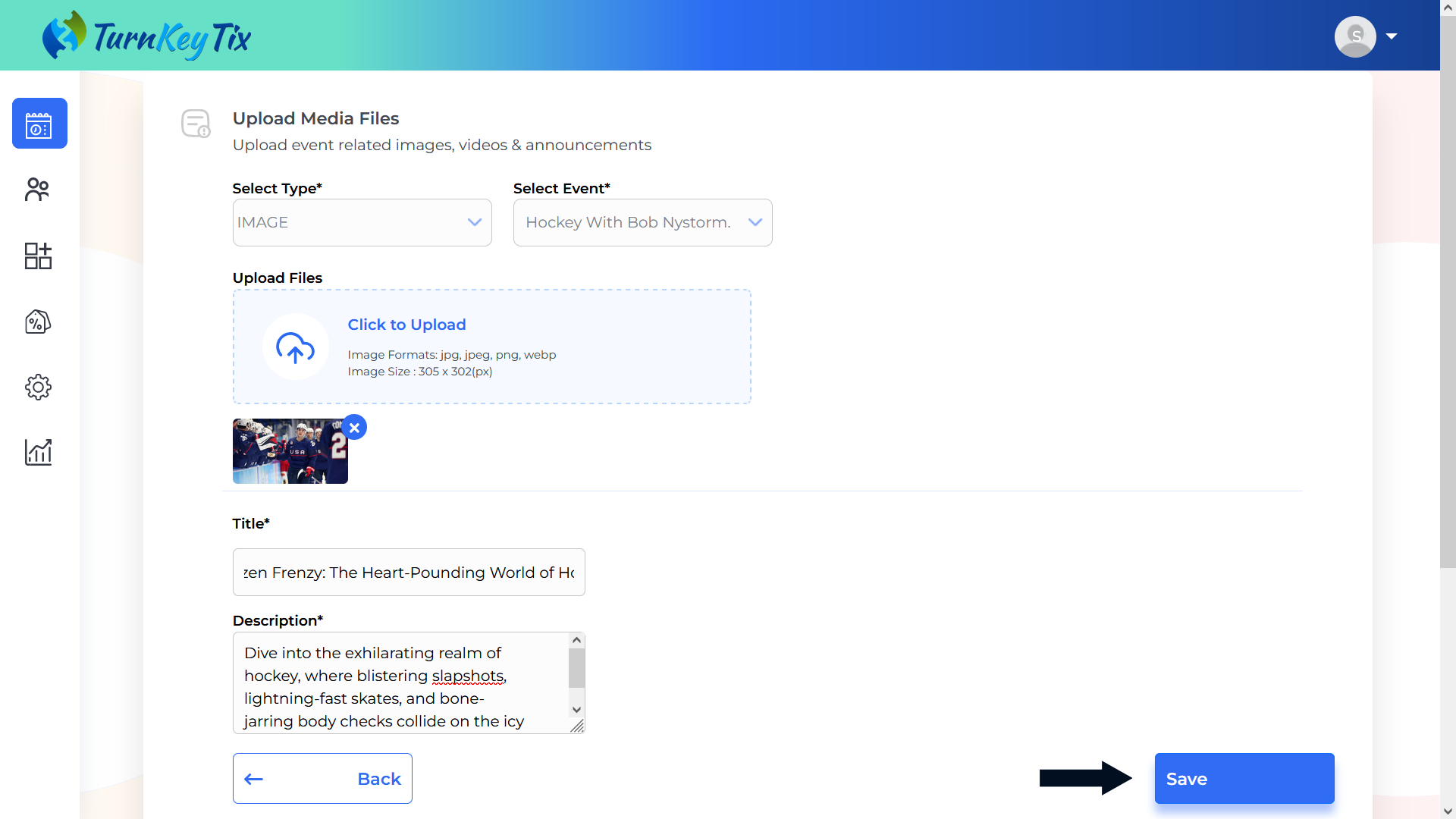
- Click on the Save button and the media will be saved.
How to Create Tickets for the Created Event
- Login into your Dashboard and Click on the 3 vertical dots of the created Event.
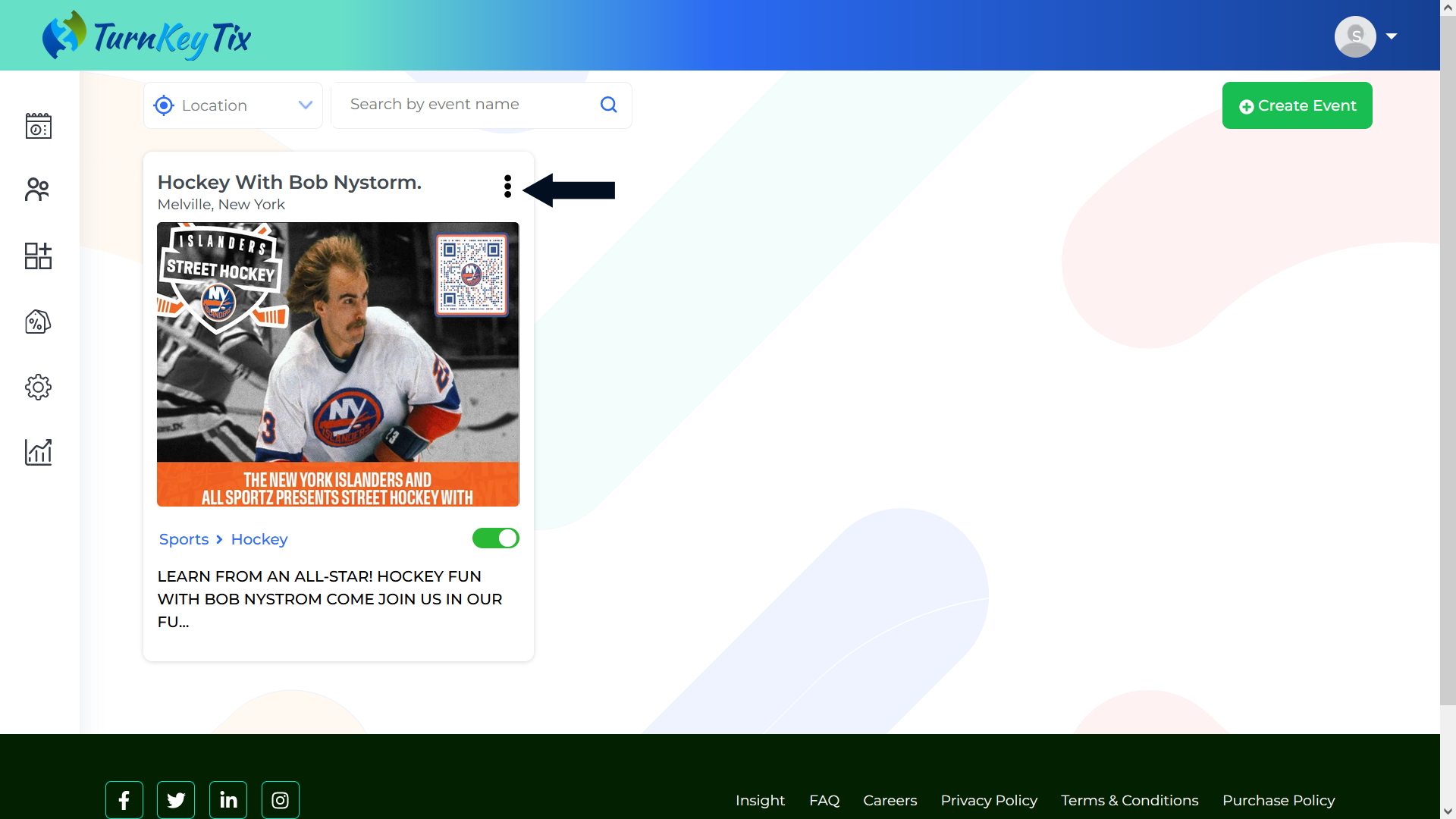
- Click on the “Create Tickets” button.
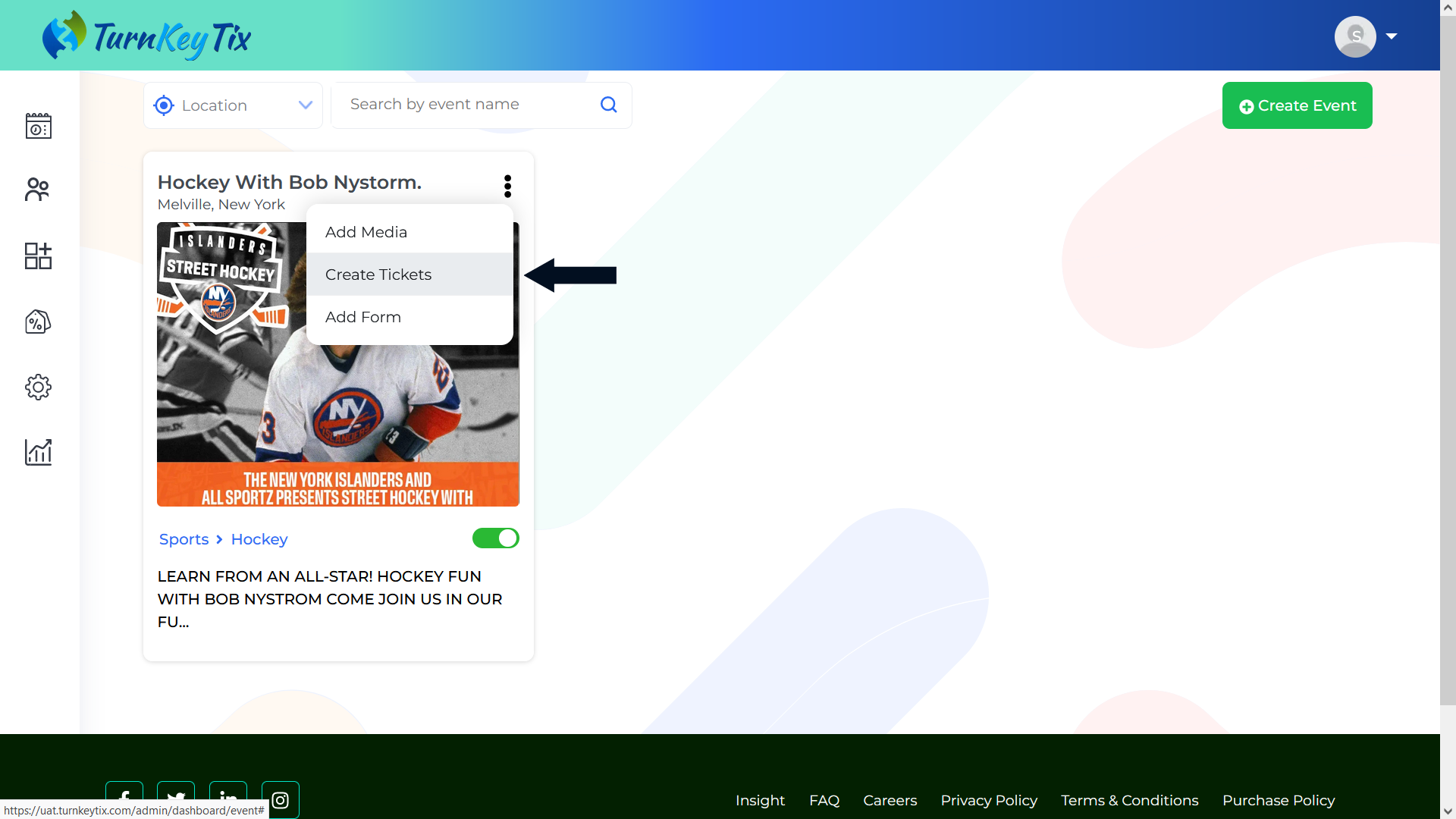
- Need to Fill in the Basic Info section.
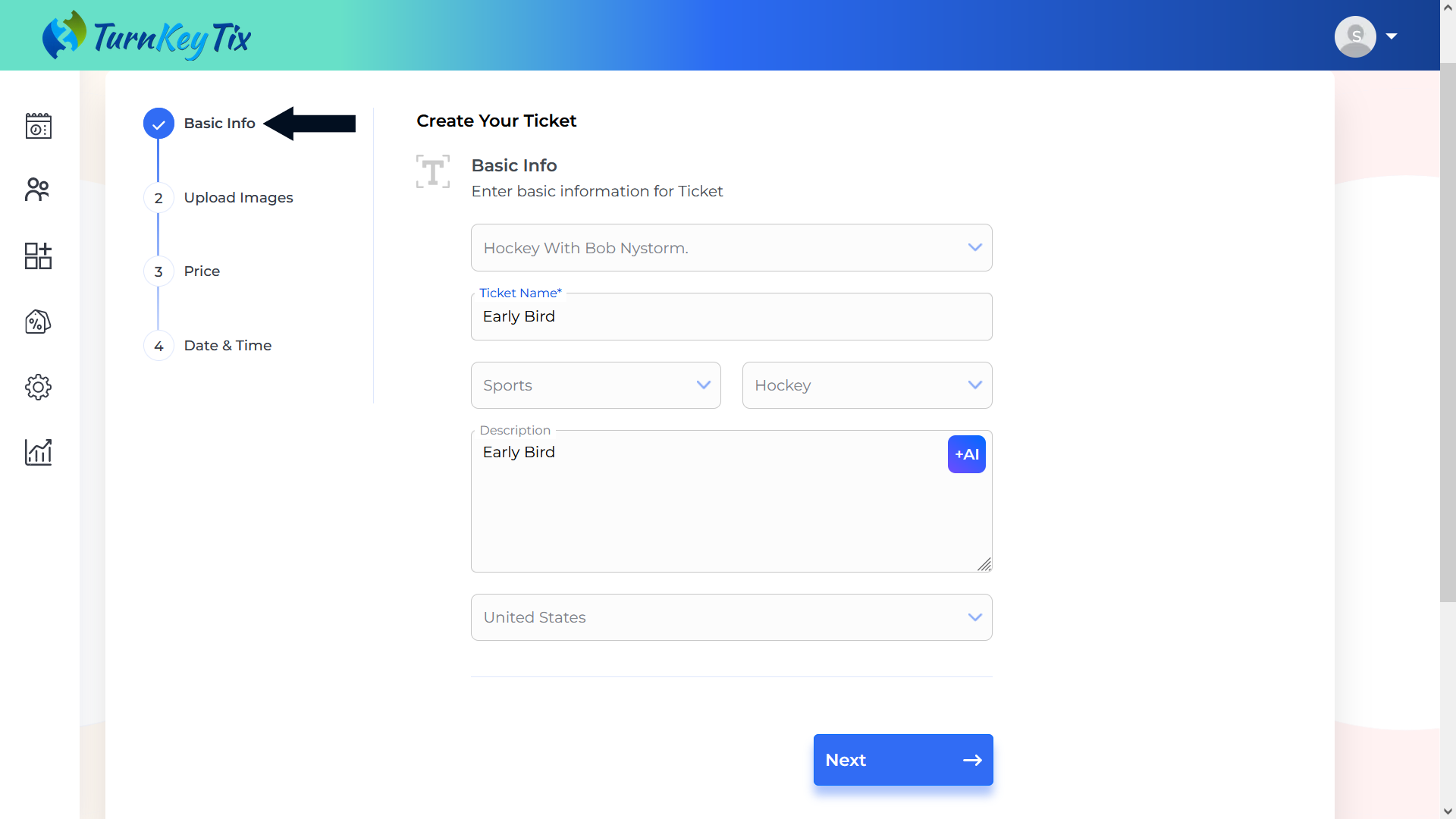
- Enter the Ticket Name.
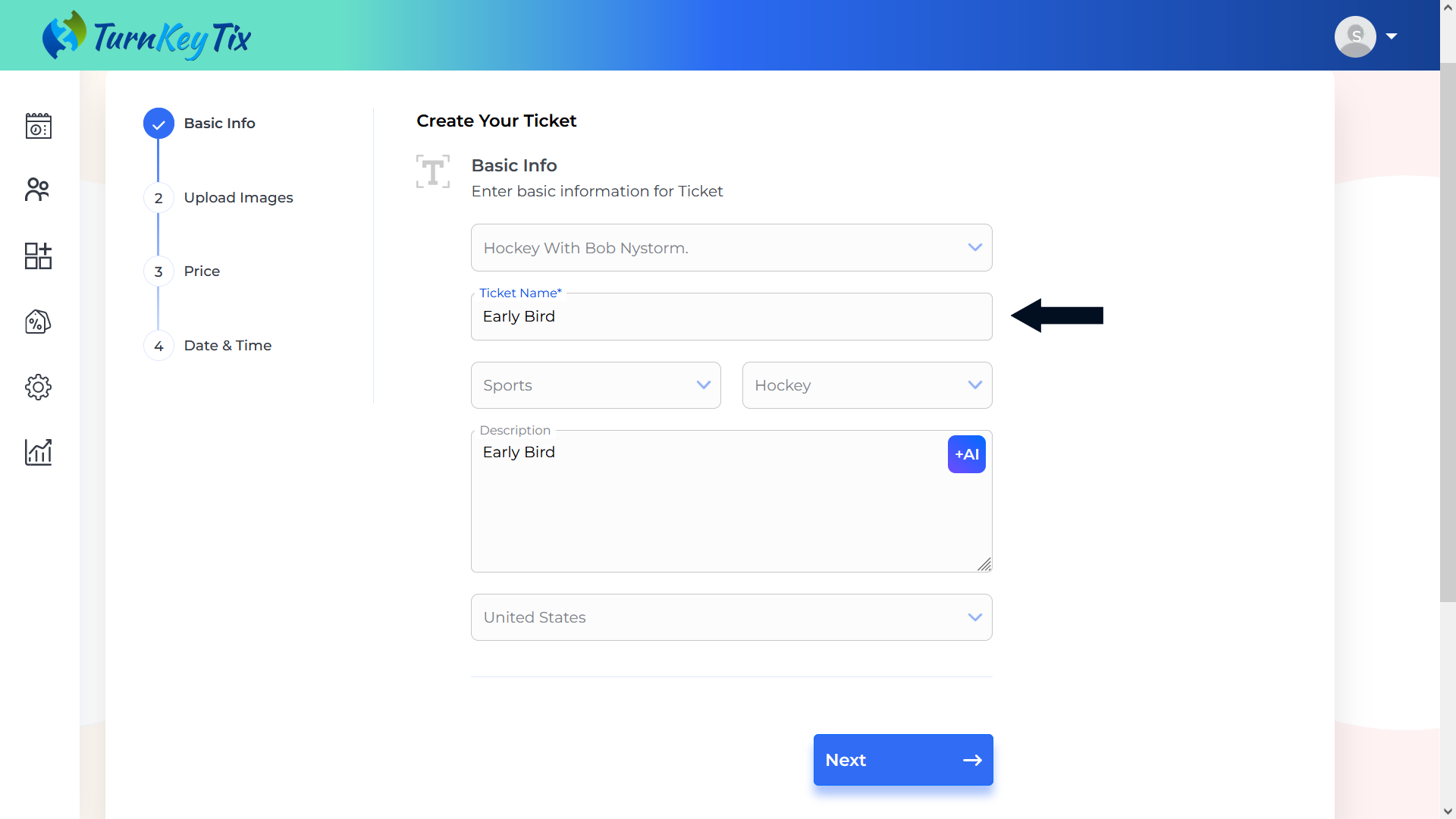
- Choose the Category from the Category drop-down.
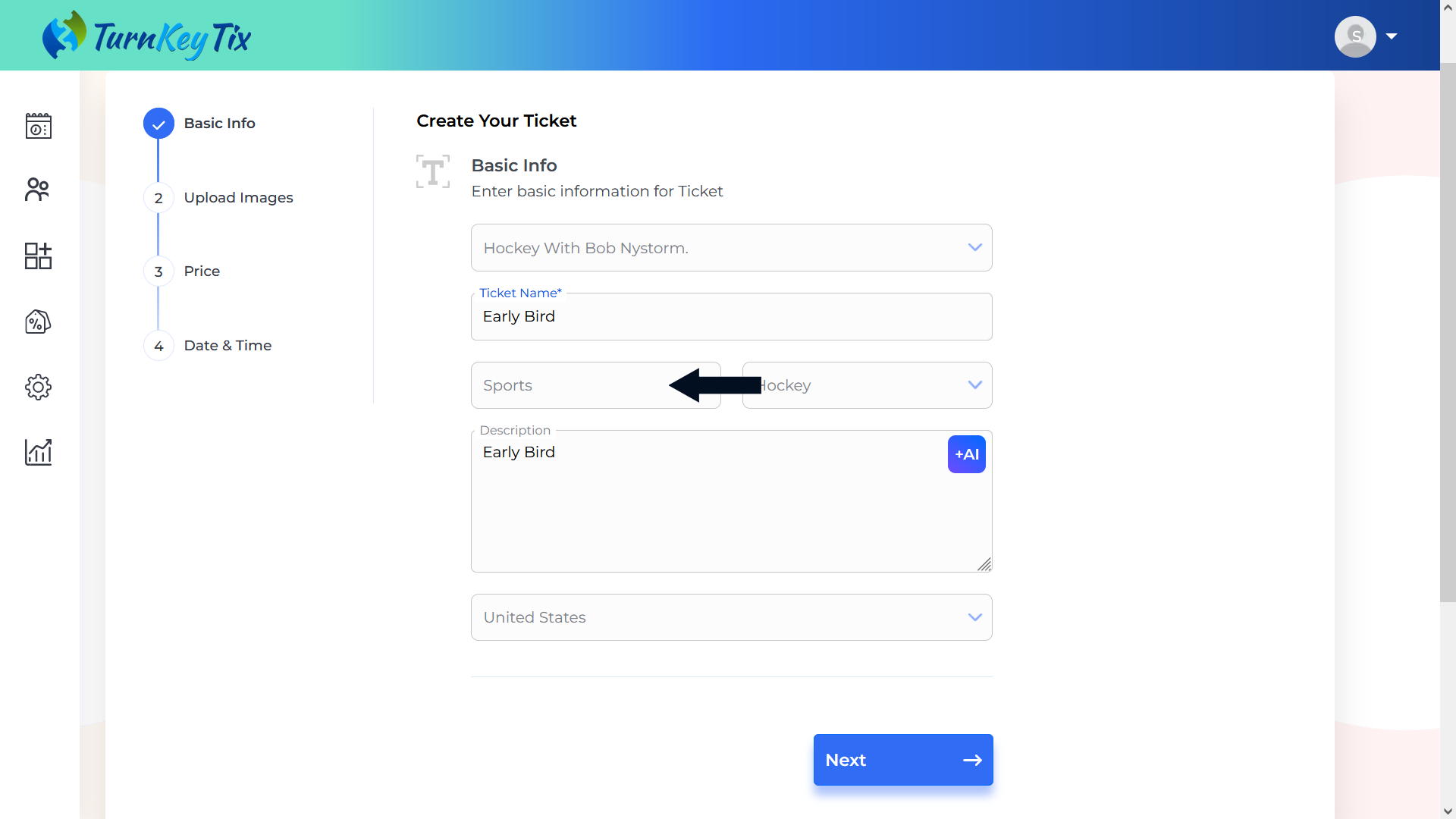
- Choose the Subcategory from the Sub Category drop-down.
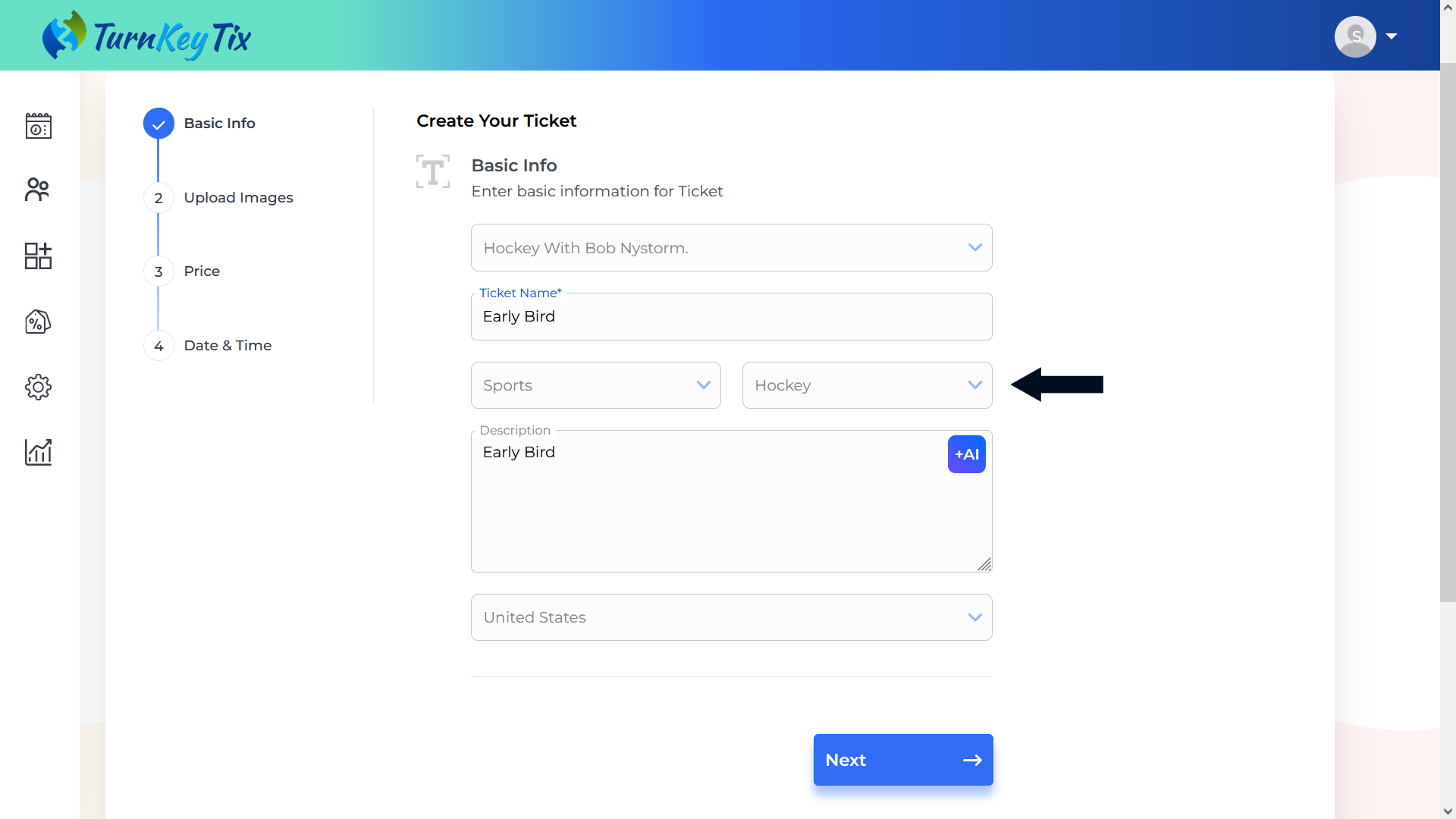
- Enter the description manually or just click on the AI button to add the description automatically based on the name, category, and sub-category.
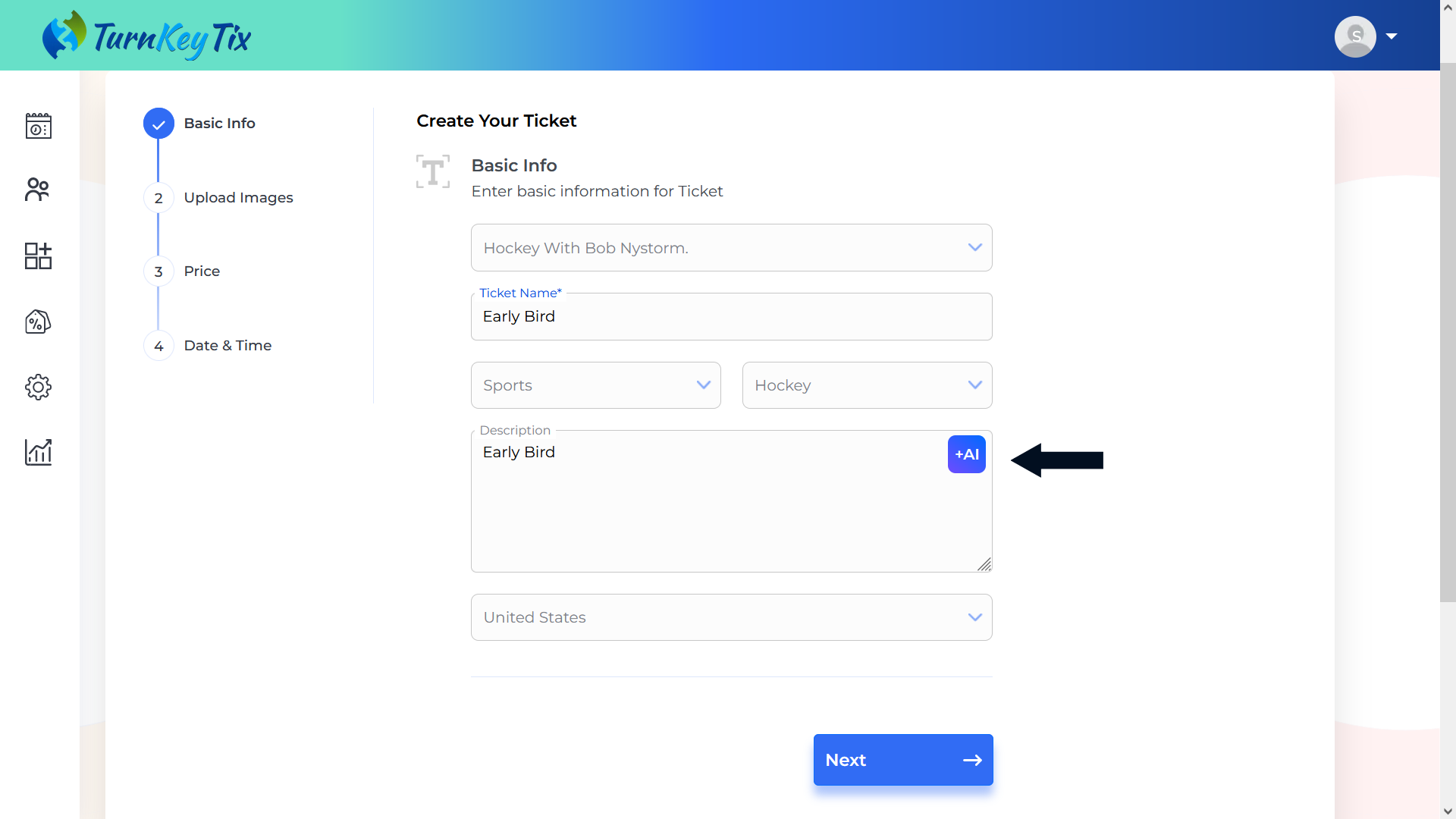
- GOTO to the next section by clicking on the Next button.
- Need to complete the Upload Images section

- Upload ticket images by clicking on the “Update Ticket Image” box or simply Drag and drop the image. NOTE: It is important to keep in mind that the Max Image Height X Width should be 1000 X 600 PX with a Max Size is 20 MB (Allowed Formats are SVG, JPG, PNG, or GIF).

- GOTO to the next section by clicking on the Next button.

- Need to Fill in the Price details section

- Enter the minimum quantity in the “Min qty buy” field.

- Enter the maximum quantity in the “Max qty buy” field.
- Choose the Currency from the Currency drop-down.
- Enter the Retail price of the ticket in the Retail price field.
- Enter the Selling Price of the ticket in the Selling Price field.
- Enter the Tax% (12 or 18…) in the Tax field. NOTE: It is important to keep in mind that all transactions will have an 8.25% Service Tax.
- GOTO to the next section by clicking on the Next button.
- Need to Fill in the Date & Time section.
- Select the Ticket Sales Start and End Date & Time.
- Click on the “Create Button” to create your ticket.
- Click on the “Yes” button and your event will be published.
How to Add Registration Form
- Click on the 3 vertical dots of the created Event and Click on the “Add Form” button.
- Create a Registration Form by clicking on the “Add New Registration Form” button.
- GOTO to the next section by clicking on the Next button.
- Add the basic Registration details.
- Once all information is filled, click on the “Submit” button.
- Fill in the basic information like Retail Price, Selling Price and Tax Information.
- GOTO to the next section by clicking on the Next button.
- Enter the required Terms & Conditions in the text box or you may click to choose the TurnKey Terms & Conditions by clicking on the selection box.
- Once all information is filled, click on the “Create” button.
- Click on the “Yes” button and your registration will be published.
How to Create a Team
- Login to the Event Manager Portal, Click on “Teams” from the sidebar and Click on the “Create Team” button.
- Fill in the below-required fields: Note: All-Star (*) marked fields are mandatory to be filled.
Team Name: Note: The name must be between 5 and 50 characters, including spaces.
- Description for the team.
- Choose the “Country” from the dropdown menu. Note: Country name is required.
- Choose the “State/Province” from the dropdown menu. Note: State name is required.
- Choose the “City” from the dropdown menu. Note: City name is required.
- Upload or choose the “Team Logo”.
- Enter the Code. Note: Code is required, Please keep in mind that the entered Team code can not be changed once the Team is created.
- Click on the “Submit” button.
- Now Your Team has been successfully created.
How to Add Team Members
- Once the Team is created, Click on the three vertical dots shown above the created Team card and Click on the “Team Members” button.
- Click on the “Invite Team Member” button.
- Enter one or many email addresses of the person whom you want to be added as a Team member. Note: Need to press the “Enter” button after every email ID you feed.
- Once you enter all required email IDs, click on the “Invite” button. Note: An Invite will be sent to the entered email addresses with the Team Code to join the Team.
How to Add Sponsors
- Login into your dashboard and Click on the “Manage Sponsors" from the menu on the Left Upper Side Panel.
- Click on the “Create Sponsor" on the Right Upper Side Panel.
- Enter the basic details.
- GOTO to the next section by clicking on the Next button.
- Upload Sponsor images by clicking on the “Upload Sponsor Image” box or simply Drag and drop the image. NOTE: It is important to keep in mind that the Max Image Height X Width should be 1000 X 600 PX with a Max Size is 20 MB (Allowed Formats are SVG, JPG, PNG, or GIF).
- GOTO to the next section by clicking on the Next button.
- Fill in the basic information like Minimum Quantity, Maximum Quantity, Retail Price, Selling Price and Tax Information.
- GOTO to the next section by clicking on the Next button.
- Add the Single or Multi Use Discount Code (If needed).
- Click on the Create Button as the final step to create the Sponsor.
How to Add Merchandise
- Login into your dashboard and Click on the “Merchandise Store" from the menu on the Left Upper Side Panel.
- Click on the “Create Product" on the Right Upper Side Panel.
- Enter the basic details.
- GOTO to the next section by clicking on the Next button.
- Upload Product images by clicking on the “Upload Product Image” box or simply Drag and drop the image. NOTE: It is important to keep in mind that the Max Image Height X Width should be 1000 X 600 PX with a Max Size is 20 MB (Allowed Formats are SVG, JPG, PNG, or GIF).
- GOTO to the next section by clicking on the Next button.
- Fill in the basic information like Minimum Quantity, Maximum Quantity, Retail Price, Selling Price and Tax Information.
- Click on the Create Button as the final step to create the Merchandise.
- Click on the “Yes” button and your Merchandise will be published.